Template Manager
Open, duplicate, version, activate, deactivate, refresh, and delete templates from the Templates tab in the builder.
The Templates tab in the builder is the template manager. It lists every template in the org and lets you load, version, activate, deactivate, refresh, and delete them.
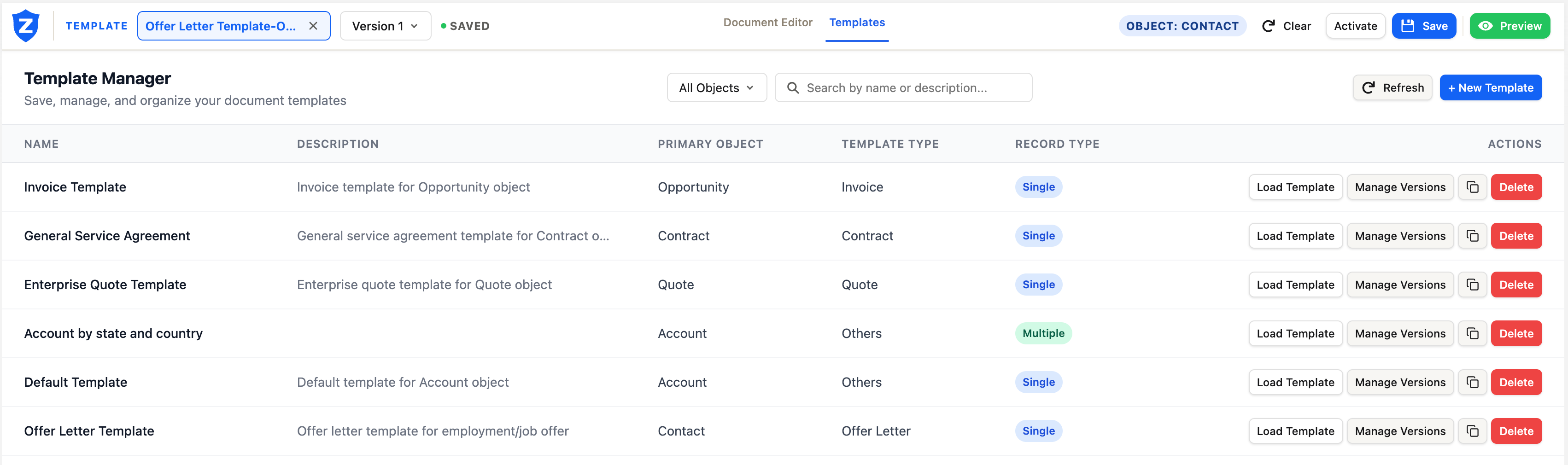 The template manager. Each row shows the template name, description, primary object, template type, record type, and actions.
Opening the template manager
Click the Templates tab in the builder header. The list loads from the server when the tab opens.
Loading a template
Click a template row to load it into the builder. The canvas and panels populate with the active version.
Template versions
Each template can have multiple saved versions. The version dropdown next to the template name in the builder header shows the current version. Select a different version to load it.
Active version: the version used to generate documents from record pages and flows. Only one version is active at a time. Click Activate in the builder to make the current version active.
Creating a new template
Click Start from blank in the Start dialog, or choose -- Create New -- in the template search. The builder asks for the template's name, key, category, primary object, record scope, and description before saving. See Starting a template for details.
Duplicating a template
In the template manager, use the duplicate action on a template row to create a copy. The duplicate starts as a new inactive version.
Refreshing the template list
Click Refresh in the template manager to reload the template list from the server. Use this if another user saved or created a template while you had the manager open.
Deleting a template
An inactive template that is not a system or locked template shows a Delete button. Click it, confirm the prompt, and the template and all its versions are permanently deleted.
Active templates cannot be deleted. Deactivate the template first, then delete it.
The server enforces this rule: the delete request is refused for an active template regardless of the UI.
Locking and system templates
Locked templates and system templates do not show the Delete button. These are templates that the package or an administrator has protected. Contact your ZeroExport admin to unlock or remove them.