Merge Cells
Merge table cells across columns and rows, unmerge them, and combine merged cells with repeating rows and totals.
Merged cells let a table cell span several columns or rows. Use them for a record title above its line items, a section label down the side of a grouped table, or a total that spans the label columns.
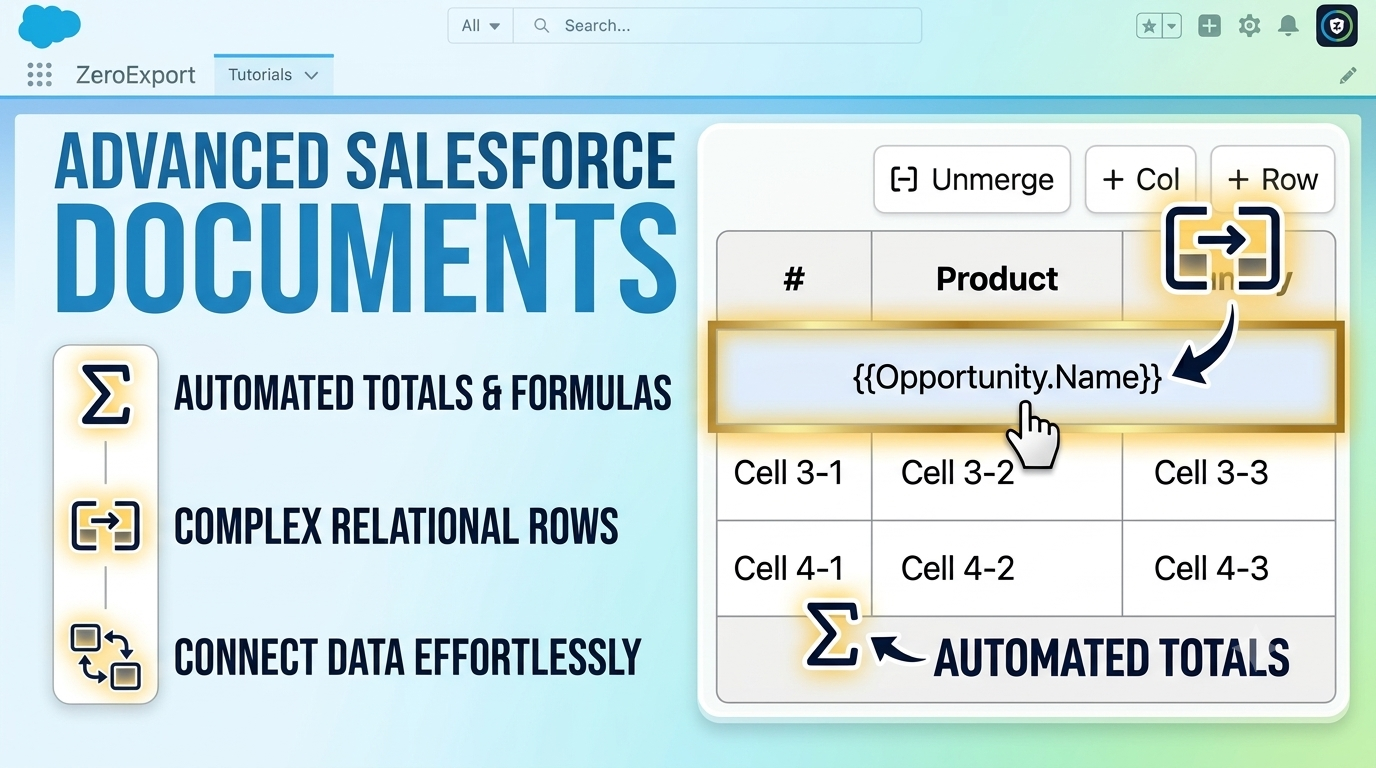
Merge cells
- Drag a Table from the DATA panel onto the canvas (see Table).
- Select the cells you want to join (see below).
- Click Merge in the bar above the table.
- Type text or a merge field such as
{{Opportunity.Name}}into the merged cell.
Cells can be merged horizontally (across columns) or vertically (across rows).
Select cells
Click a cell, then hold Ctrl (Windows) or Cmd (Mac), or Ctrl + Shift / Cmd + Shift, and click each additional cell you want to include. Arrow keys do not extend the selection. Once more than one cell is selected, the Merge button appears in the bar above the table.
Merge horizontally
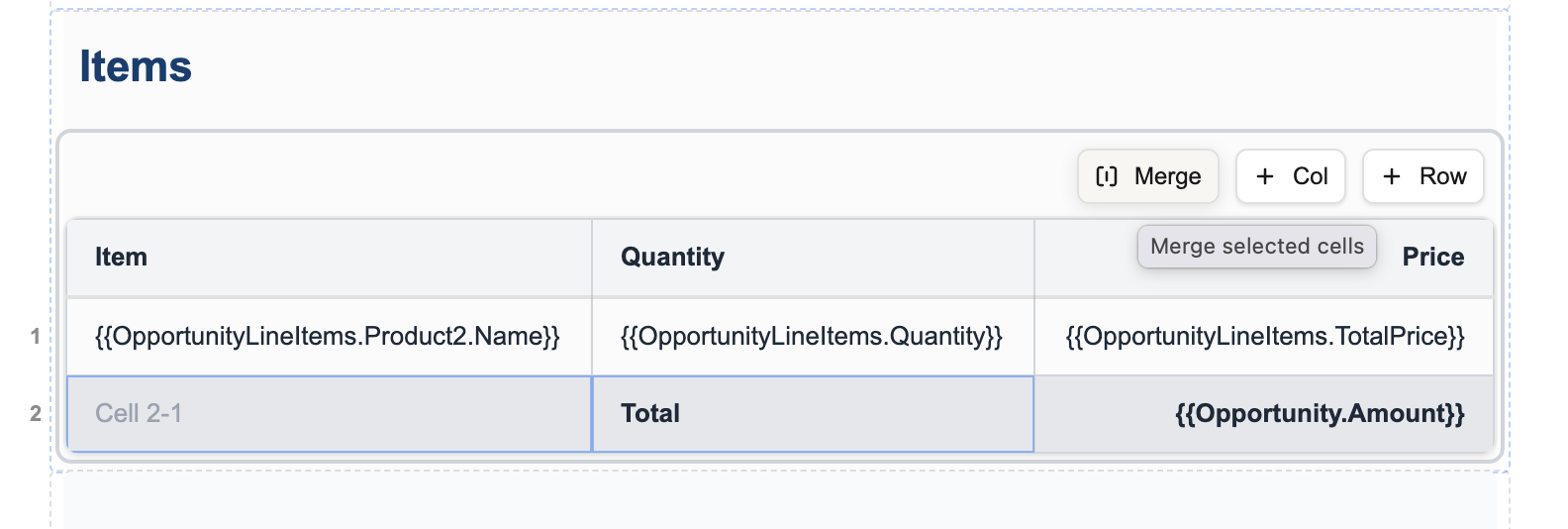
Select two or more cells in the same row. The selected cells are highlighted, and Merge shows a "Merge selected cells" tooltip.
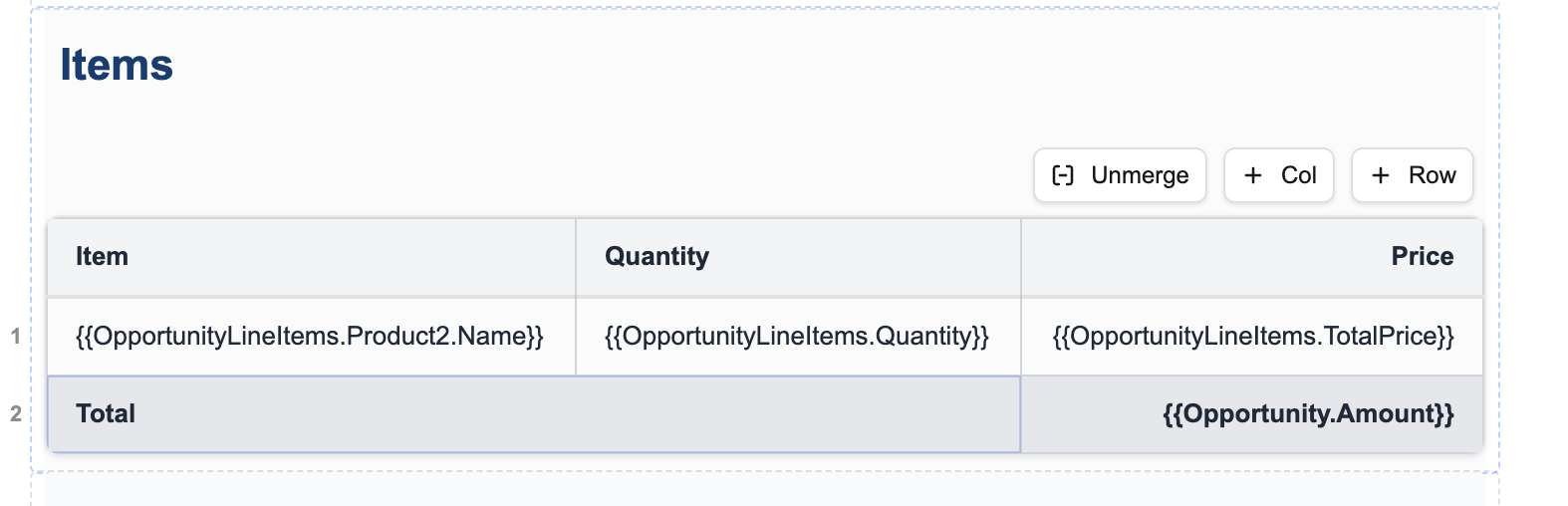
After merging, the cells become one wide cell and the button changes to Unmerge.
Merge vertically
Select two or more cells in the same column.
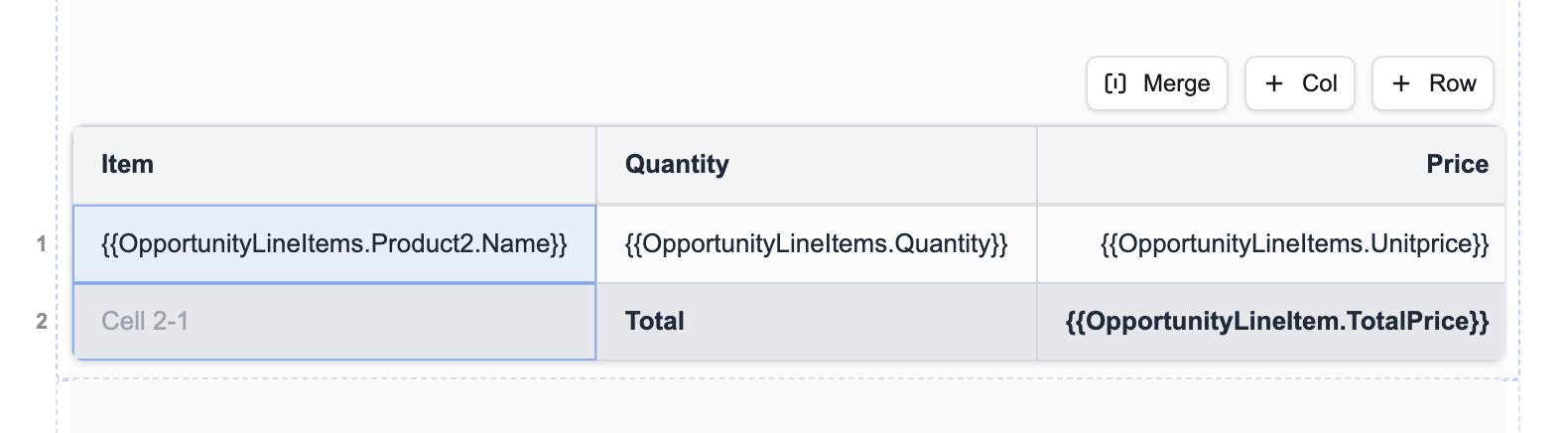
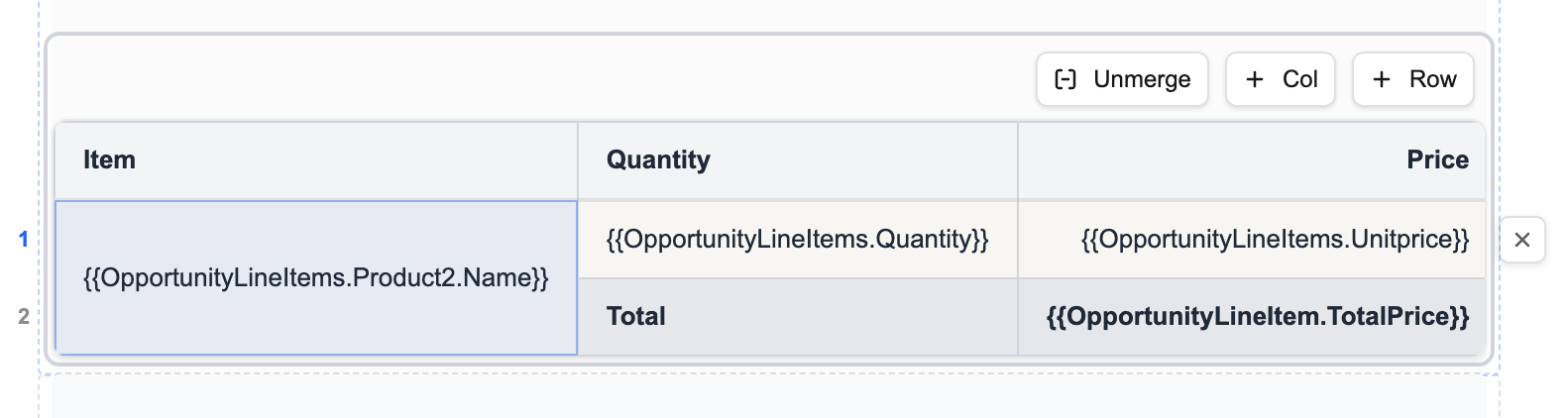
After merging, the cell spans both rows.
Merge rules
Merging works like a spreadsheet:
- The merged area is the smallest rectangle around your selection.
- Only the first cell you pick keeps its content. The others come back when you unmerge.
- If the first cell you pick is empty and exactly one other selected cell has text, the merged cell keeps that text and no prompt appears. With several cells holding text, you are asked to confirm.
- The header row merges only with other header cells.
- Cells selected with Ctrl/Cmd+click share one highlight.
- Saving discards the text of covered cells. Unmerging before you save restores it; after a save it does not.
Unmerge cells
Select the merged cell and click Unmerge. The cell splits back into its original grid, and the content hidden by the merge returns.
Merged cells and repeating rows
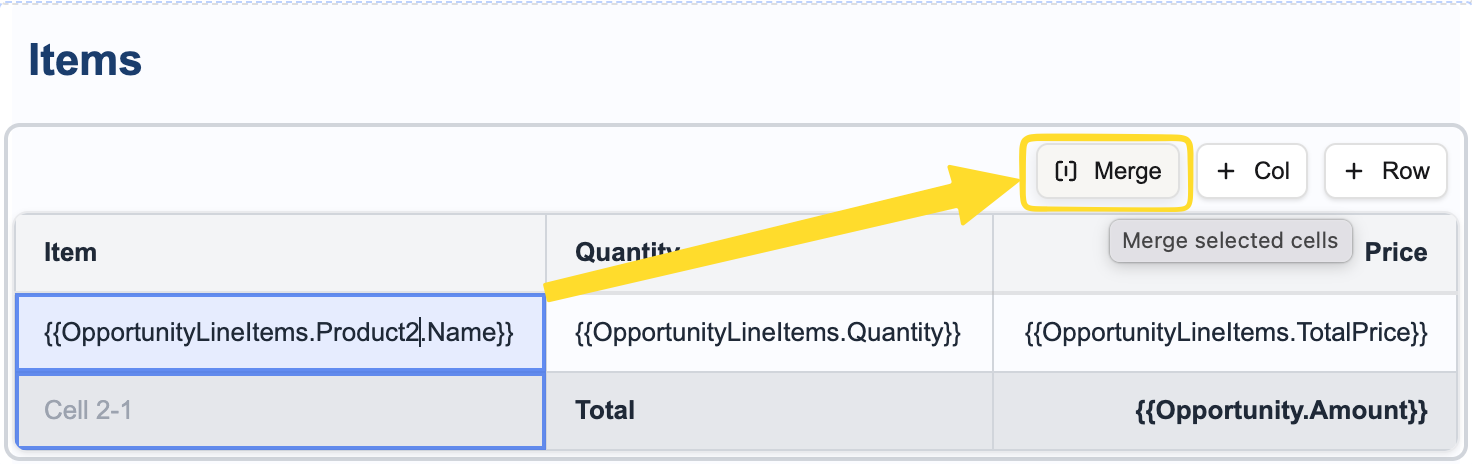 Select the cells to merge, here an item cell over a total row, and click Merge.
A merged cell in a repeating row spans every row printed for it. If its row prints nothing, the cells it covered return to normal so the rows below keep their full width.
In a table grouped by a list (opportunities with their line items), a merged cell on the first body row that covers the closing rows is one cell spanning every outer row and the closing rows, hidden on the later outer rows. For a nested level, a cell covering an account's deals and its closing row spans that account's deals and closing row, one cell per account. A merged cell that stays within the body keeps a copy per outer row. When the merged cell holds merge fields and an account has no deals, the closing row's first cell prints the merged cell's text filled from that account's own data.
For a line row and a total row that repeat over the same list, a merged cell whose text uses no field of that list (plain text, an aggregate, {{Opportunity.Name}}) prints once and spans the rows of every item when it covers the whole block. One that uses the list, or covers only part of the block, gets a copy per item.
Merge with child rows
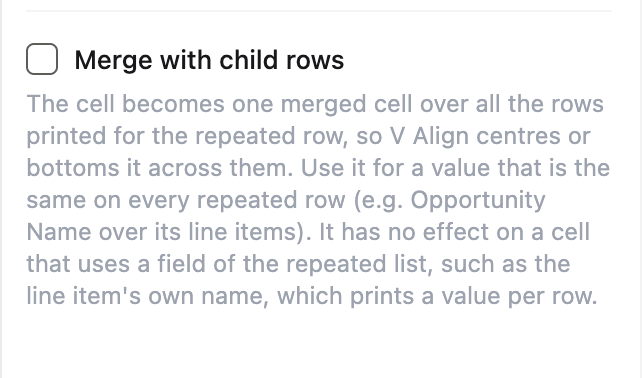 The Merge with child rows option in the Properties panel.
A column can be set to Merge with child rows. Since 1.11.0 it is one merged cell with a row span over every row the table prints for it. Its value is the first item's, V Align centres or bottoms it across the whole span, and any text in the cells under it does not print. Rows still print per item. Save a template compiled by a 1.11.0 beta once to get this. Across a page break, the value sits where its V Align puts it in the whole span, which can be on a later page for Middle or Bottom.
This works by position, not by comparing values. Use it only for a value that is the same on every repeated row, such as a parent field printed over its child rows. A value that differs from row to row would be blanked.
Totals and subtotals
Set a row's role to Subtotal or Total in the Row section of the Properties panel. See Table for row roles.