Signature Blocks
Add DocuSign- and Conga Sign-compatible signature blocks to a template using palette presets. Invisible anchor text places e-sign fields automatically.
The builder palette has a Signatures group with three presets for adding signer sections to a template. Each preset places invisible anchor text that e-sign apps such as DocuSign and Conga Sign use to auto-place signature and date fields in the generated PDF without manually positioning them in the signing platform.
Presets
| Preset | Contents |
|---|---|
| Signature | One signer: Signature, Name, Title, and Date lines |
| Two signatures | Two signers side by side, each with the same lines |
| Signature (prefilled) | One signer with {user_name}, {user_email}, and {today} |
Drag a preset from the Signatures group onto the canvas. It drops as a grid. No new block type is introduced. The saved template stores a plain grid built from paragraphs and line breaks.
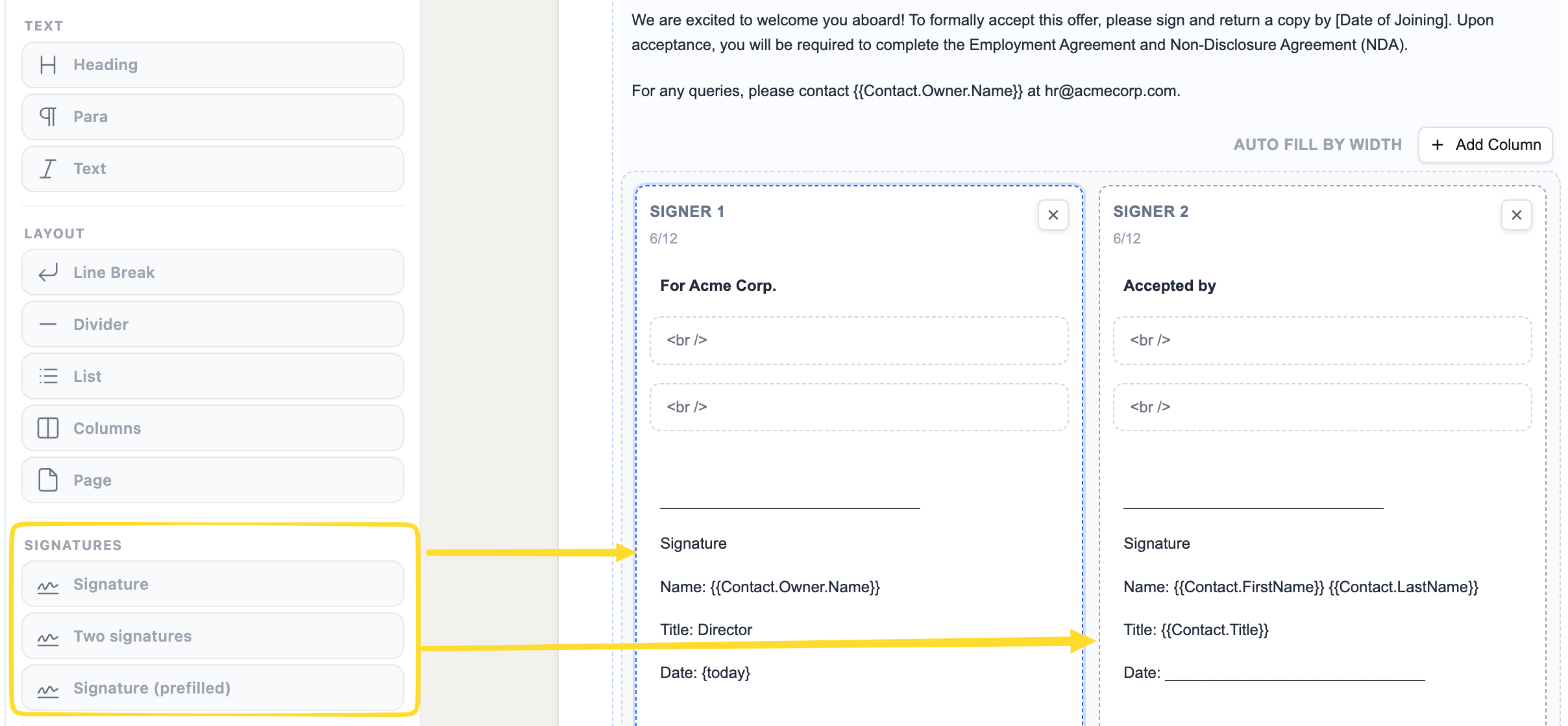 The Signatures group in the palette (left) and a Two signatures block on the canvas (right).
Anchor text
Each signer includes invisible anchor text. The anchors are zero-width characters in the generated PDF; signers do not see them.
| Anchor | Position |
|---|---|
/sn1/ | Before the first signer's signature line |
/dt1/ | After the first signer's date line |
/sn2/ | Before the second signer's signature line |
/dt2/ | After the second signer's date line |
Configure your e-sign platform to place a signature field at /sn1/ and a date field at /dt1/. DocuSign and Conga Sign support this out of the box.
The prefilled preset
Signature (prefilled) uses system variables that resolve at generation time:
| Token | Resolves to |
|---|---|
{user_name} | Full name of the user generating the document |
{user_email} | Email address of that user |
{today} | Date the document is generated |
Use this when one signatory is always the Salesforce user generating the document.
Editing a dropped block
After dropping a preset:
- Change the label text ("Authorized by", "Customer signature", etc.) by clicking into any paragraph and editing it.
- Adjust column padding, font size, or line styles in the Properties panel.
- The column padding and margin default to zero because the grid gap already provides the space.
The anchor characters are part of the paragraph text. Do not delete the line that contains /sn1/ or /dt1/ unless you intend to remove the anchor.