Conditional Visibility
Show or hide any element based on record data — operators, AND/OR/custom logic, inverse visibility, and reusable shared conditions.
Conditional visibility lets any element appear only when the record data meets a condition you define. A "Past Due" stamp that shows only on overdue invoices, a discount row that appears only when a discount exists, terms that differ by region — all handled without separate templates.
Conditions are configured in the Visibility tab of the builder right panel. Select an element, open the tab, and you'll see Visible When with the element's current condition (or an empty state if it has none).
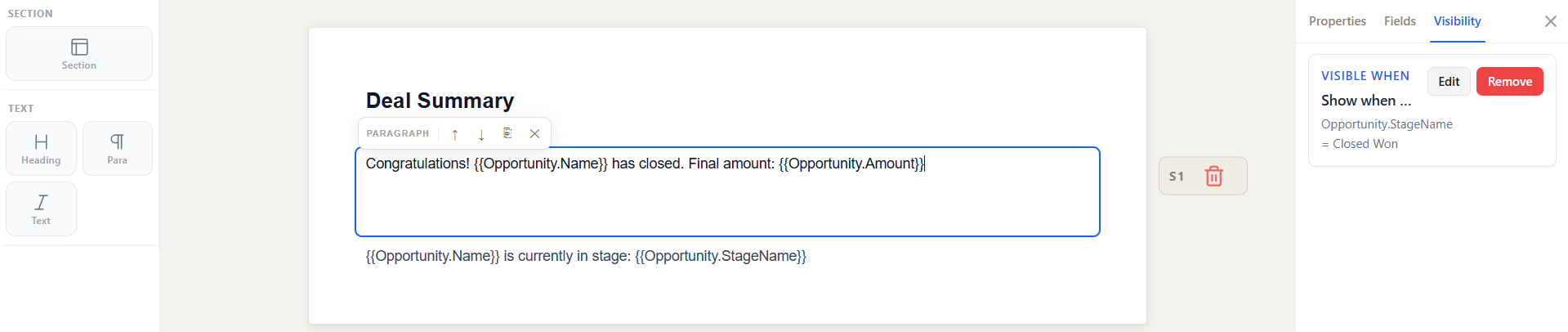 The Visibility tab showing a configured "Visible When" condition on the selected element.
Adding a condition
- Select an element on the canvas.
- Open the Visibility tab and click + Add Visibility Condition.
- Choose Create New Condition.
- Give the condition a name (for example, "Show when Closed Won").
- Add one or more rows. Each row is a Field, an Operator, and a Value.
- Click Save.
The element now renders only when the condition evaluates to true against the record's data.
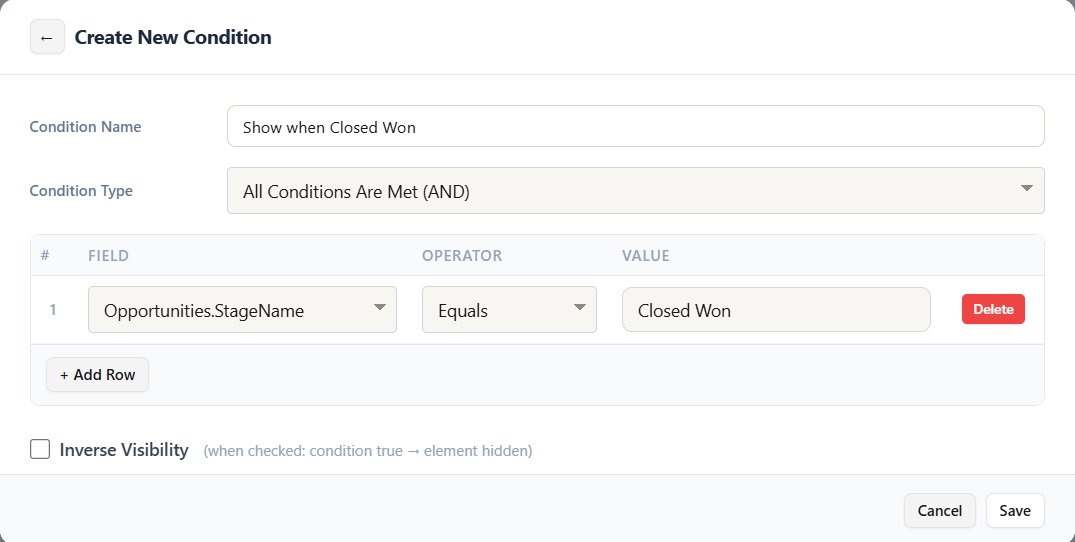 The condition editor: name, condition type, and a table of Field / Operator / Value rows.
Operators
The operator list adapts to the selected field's type (text, number, date, checkbox, picklist):
| Operator | Meaning |
|---|---|
| Equals / Not Equals | Exact match / non-match |
| Greater Than / Less Than | Numeric or date comparison |
| Greater Than or Equal / Less Than or Equal | Inclusive numeric or date comparison |
| Contains / Not Contains | Substring match, or exact item match for multi-select picklists |
| In / Not In | Value is one of a comma-separated list |
| Is Null / Is Not Null | Field is empty / has a value (no value needed) |
Notes:
- Checkbox fields support only Equals and Not Equals (compare against
trueorfalse). - In / Not In accept a comma-separated list —
Gold, Platinummatches either. - Values with formatting are handled —
50,000and$50,000compare as the number50000. - Dates compare correctly whether the field is a Date or Datetime; date-only fields ignore the time portion.
Condition types
When a condition has more than one row, the Condition Type decides how the rows combine:
| Type | Element shows when |
|---|---|
| All Conditions Are Met (AND) | Every row is true |
| Any Condition Is Met (OR) | At least one row is true |
| Custom Condition Logic Is Met | Your logic expression is true |
Custom logic
Choose Custom to combine rows with your own expression, referencing each row by its number:
1 AND (2 OR 3)
This shows the element when row 1 is true and either row 2 or row 3 is true. AND binds tighter than OR, and parentheses group explicitly.
Inverse visibility
Every condition has an Inverse Visibility toggle. When checked, the meaning flips: condition true → element hidden. Use it to hide an element in the matching case — for example, hide a "Thank you for your payment" note when the balance is not zero, by inverting a Balance = 0 condition.
Reusable (shared) conditions
A condition can be attached to more than one element. When you add visibility, you can:
- Use Existing Condition — attach a condition already saved on this template.
- Clone & Edit Existing — copy an existing condition, tweak it, and save it under a new name.
If you edit a condition that is used in multiple places, the builder warns you that the change affects all uses, and offers to Clone instead so existing uses stay untouched.
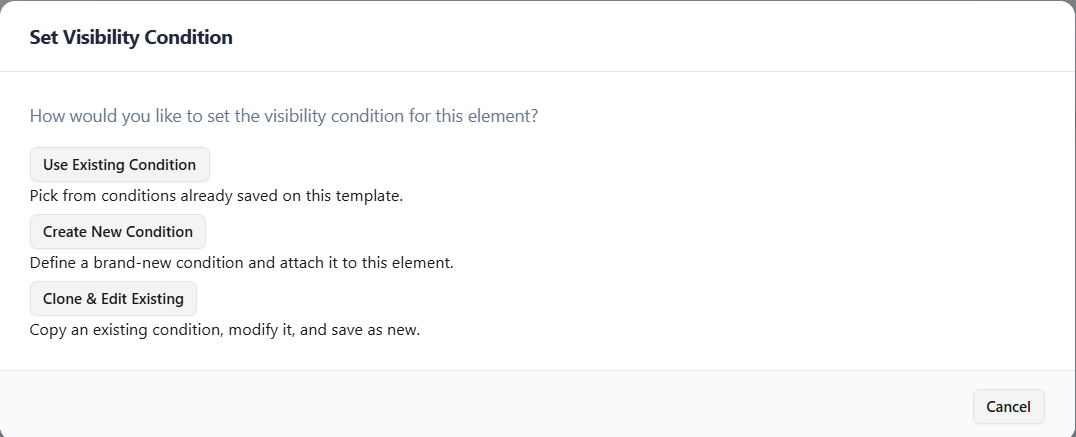 Choosing how to attach a visibility condition: use existing, create new, or clone and edit.
Fail-closed behavior
Visibility is fail-closed: if a rule is malformed, references a missing field, has no condition rows, or errors during evaluation, the element is hidden rather than shown. This prevents half-configured rules from leaking content into a document. See Edge Cases & Limits for the full list of limits and fallback behavior.
See also
- Iterations — repeating content for child records
- Edge Cases & Limits — limits and fail-closed rules
- Merge Field Syntax — the field paths used in conditions