Document Readiness Report
The readiness gauge in the preview checks a record against the template’s required fields before you generate — showing present, missing, and no-access fields.
The Document Readiness Report is a check that runs in the preview when you view a template against a specific record. It compares the record's data against the fields you have marked required on the template, and shows — at a glance — whether that record has everything the document needs.
It catches the common problem before a document goes out: generating for a record that is missing a key field, so the PDF has blank spaces where an amount, date, or address should be.
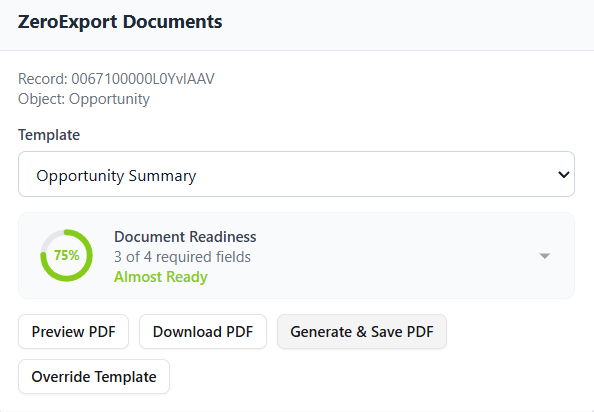 The readiness gauge in the preview: a completion score, the required-field count, and a status label.
When it appears
The report shows in the preview only when both are true:
- You are previewing against a real record (a record is selected), and
- The template's primary data source has at least one field marked as required.
If no fields are marked required, the report stays hidden — there is nothing to check.
Marking fields as required
Required fields are defined on the data source, not on the canvas:
- Open the template's Data Source configuration.
- Find the field in the field list.
- Click the ✱ (star) toggle next to it. The star marks that field as required for document generation.
Repeat for each field the document depends on. Only fields on the primary data source are evaluated by the readiness report.
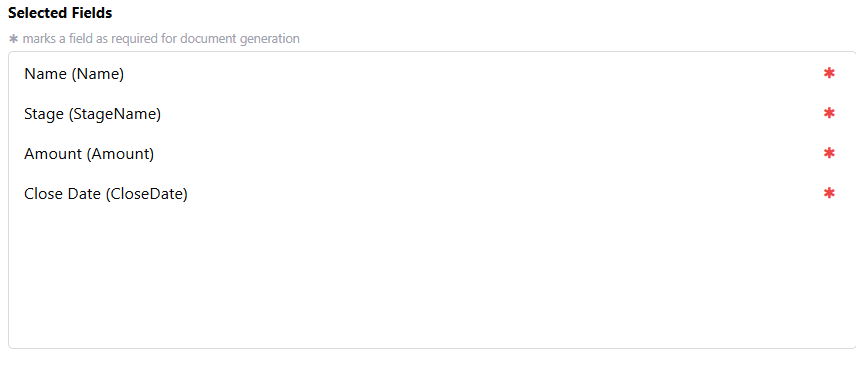 Marking fields as required in the data source configuration with the ✱ toggle.
The readiness score
The gauge shows a completion percentage — the share of required fields that are present on the record:
score = present required fields ÷ total required fields
The color and status label change with the score:
| Score | Status | Meaning |
|---|---|---|
| 100% | Ready | Every required field has a value |
| 71–99% | Almost Ready | A few fields are missing |
| 41–70% | Incomplete | Many fields are missing |
| 0–40% | Not Ready | Most required fields are missing |
The summary line also shows the raw count — for example, "7 of 9 required fields".
Field-by-field breakdown
Click the report to expand a per-field list. Each required field shows one of three states:
| Marker | State | Meaning |
|---|---|---|
| ✓ green | Present | The field has a non-blank value on this record |
| ✗ red — missing | Missing | The field is empty or null on this record |
| ✗ amber — no access | No access | Your user does not have field-level access to read it |
The no access state is a permissions signal, not a data problem: the field may well have a value, but the running user's field-level security prevents reading it — so the document would render it blank for that user. Fix it by granting field-level access via the user's profile or permission set.
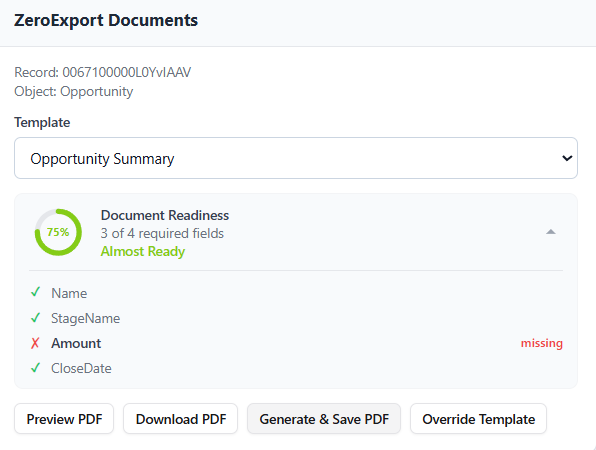 Expanded breakdown showing present, missing, and no-access fields.
Refreshing the report
The report re-runs automatically when you switch to a different record or version. If you update the record in another tab, refreshing the record view re-checks readiness so the score reflects the latest data.
See also
- Edge Cases & Limits — how missing data renders when you generate anyway
- Merge Field Syntax — the fields a document pulls from the record
- Conditional Visibility — hide sections when optional data is absent