Table
Build tables in the ZeroExport builder: add rows and columns, set row roles for subtotals and totals, and merge cells.
A structured grid of rows and cells. The first row is the header row, displayed in bold by default.
Use case: Invoice line items on an invoice
An invoice needs to list each service with its quantity, rate, and amount in a clear, aligned layout. A Table keeps each line item on its own row, with headers at the top so the client knows what each column means.
Steps:
- Drag Table from the DATA panel onto the canvas.
- By default it opens with a header row and one data row. Click any cell to edit its text directly. Use a merge field or type the value. Type
{{Opportunity.Amount}}in the total cell to pull it from the record automatically. - Click Add Row in the bar above the table to add more data rows.
- Click Add Col to add more columns.
- In the Properties panel, configure header alignment, background color, and font weight, and set a row's role (Normal, Subtotal or Total) in the Row section. Each body row has a delete button just outside the table's right edge while the pointer is on the row.
| Description                    | Qty | Rate       | Amount                 |
|--------------------------------|-----|------------|------------------------|
| Salesforce CRM implementation  |  1  | $5,000.00  | $5,000.00              |
| Custom LWC development         |  1  | $3,000.00  | $3,000.00              |
| Third-party API integration    |  1  | $1,500.00  | $1,500.00              |
| Total                          |     |            | {{Opportunity.Amount}} |
 Invoice line items table with hardcoded service rows and total pulled from
{{Opportunity.Amount}} merge field.
Placeholder cells
A new row or column has empty cells that show a placeholder such as "Cell 1-2". The placeholder follows the cell's position, so it updates after a move, and it never prints. Existing cell values are not changed.
Reorder rows and columns
Drag the grip at the top of a column header to move the column. Drag the handle beside a row (the grip with the row number) to move the row. The arrow keys move a focused handle one step.
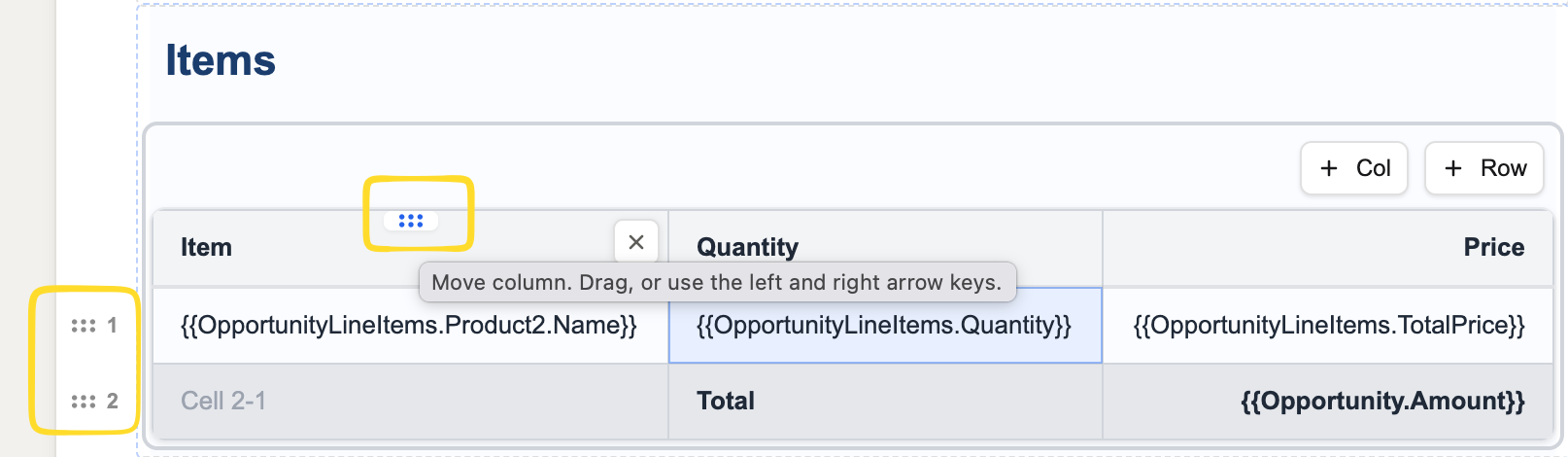 The column grip sits at the top of a header, and each row has a handle with its number. Hover a grip to see the keyboard hint.
- The table stays still while you drag: the original is dimmed, a copy follows the pointer and a Drop here bar marks the target gap. Press Escape to cancel.
- The header row stays on top. Subtotal and total rows move freely.
- A move that would split a merged cell is refused with a message.
Hide closing rows with nothing above them
A Subtotal or Total row can be hidden when no rows print above it. See Iterations.
Merging cells
Select cells in a table and merge them across columns or rows. Merging works like a spreadsheet:
- The merged area is the smallest rectangle around your selection.
- Only the first cell you pick keeps its content. The others come back when you unmerge.
- The header row merges only with other header cells.
For the full walkthrough, see Merge Cells.