Starting a Template
The Start screen, left rail navigation, and how to create a new template or open an existing one in the ZeroExport builder.
The Start screen
With no template open, the builder shows a Start a template dialog when it loads. The dialog offers:
- Start from blank: create a new template from scratch
- Open a template: open the Templates tab to browse all templates
- Up to five recent templates, ordered by what you last opened in this browser, then by last viewed date across the org
- A short three-step summary of how the builder works
The dialog blocks the page behind it. Dismiss it by selecting an option or pressing Escape. After it closes, the template search pulses briefly with a tooltip ("Pick a template or start a new one") to remind you where to begin.
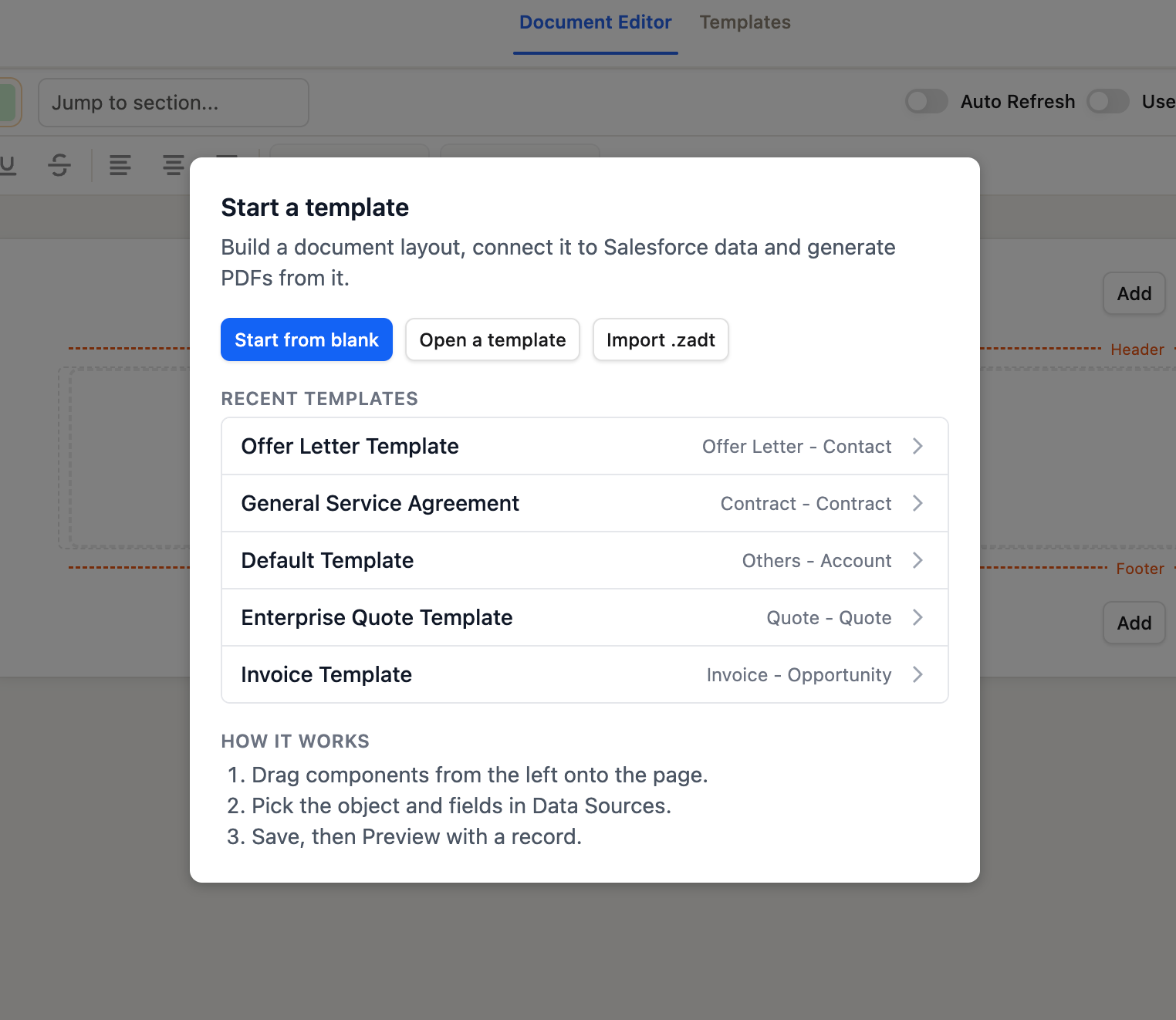 The Start screen appears when no template is open. Recent templates are ordered by what you last opened in this browser.
Creating a new template
Click Start from blank in the Start dialog, or type in the template search and choose -- Create New --. The builder opens a setup form in the Save dialog:
| Field | Purpose |
|---|---|
| Name | The display name of the template |
| Key | A unique identifier used in flow actions and APIs |
| Category | Groups templates in the manager |
| Primary Object | The Salesforce object this template generates from |
| Record Scope | Single record or multiple records |
| Description | Optional free text |
Click Continue to begin building. Nothing is saved yet.
The builder starts on the chosen object in Data Sources, the header shows New: name, and the details survive a page refresh until you save. The Test record search is available on the new template: selecting a record opens the Save dialog first (record data is read from a saved version), loads the record after save, and cancels back if you cancel the save.
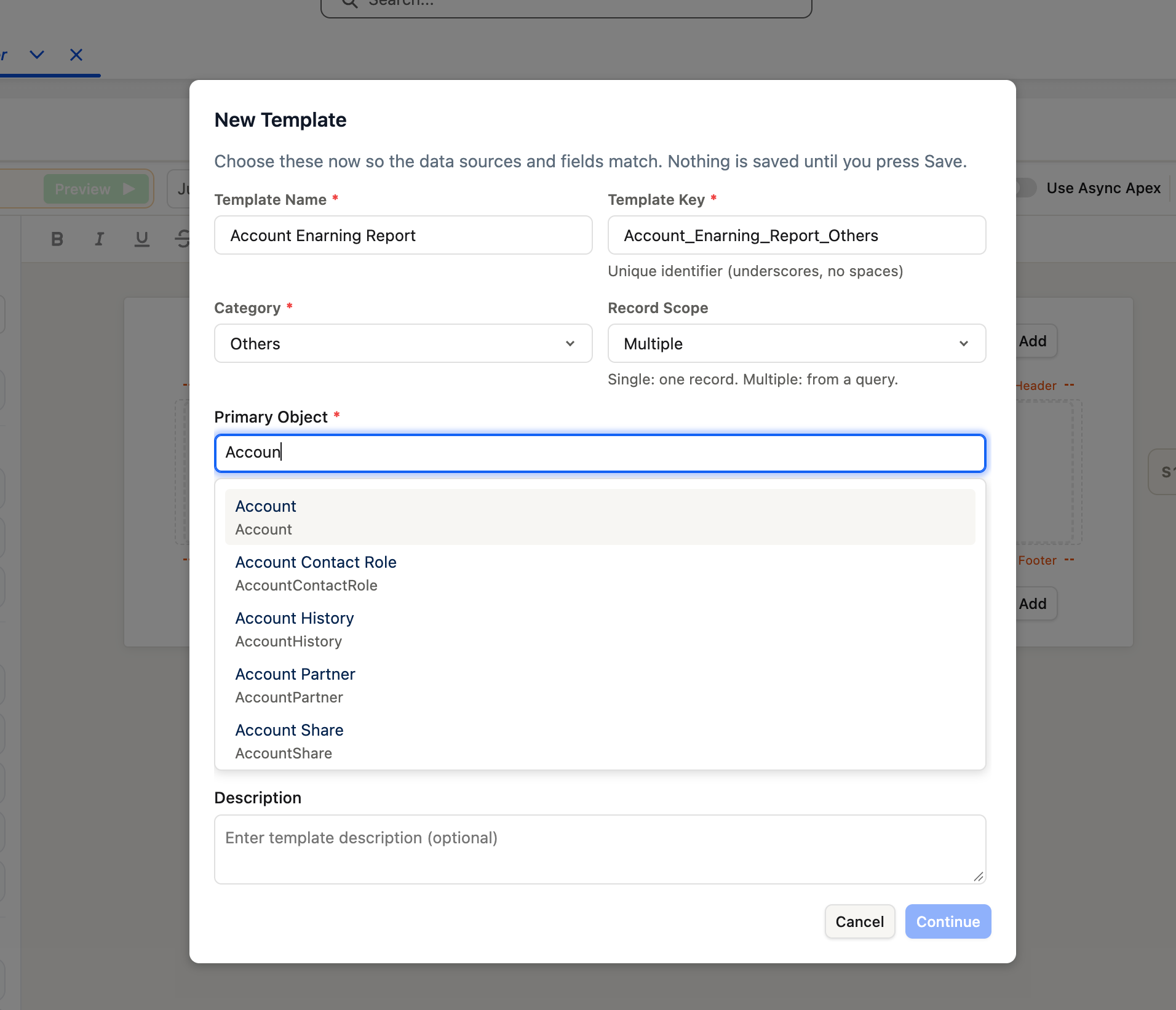 The New Template dialog. The Primary Object lookup searches your org's objects. Click Continue. Nothing is saved until you click Save.
The left rail
The left rail holds the main navigation between the builder's panels:
| Button | Opens |
|---|---|
| Blocks | The element palette: drag sections, text, tables, images, signatures, and other blocks onto the canvas |
| Fields | The merge fields panel: browse and drag fields from the template's data sources |
| Data source | The data source editor, which replaces the canvas while open |
| Branding | Template branding as a live panel beside the canvas |
| Page setup | Page size, orientation, margins, numbering, and background, which replaces the canvas |
Branding is live: changes show on the canvas as you make them. Data source and Page setup replace the canvas while open; click away from the rail button to return to the canvas.
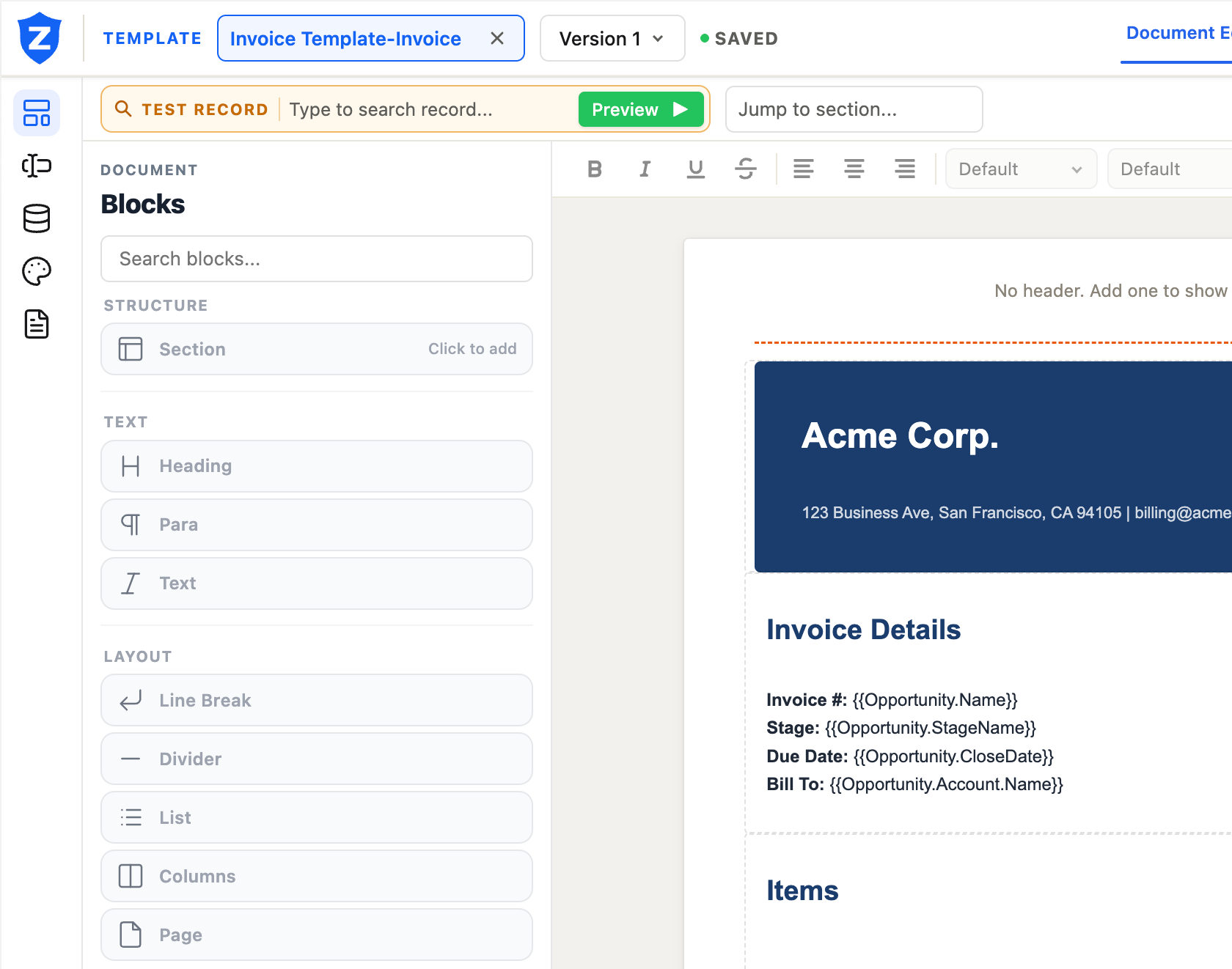 The left rail. Data source, Branding, and Page setup replace the old Data Sources and Template Settings tabs.
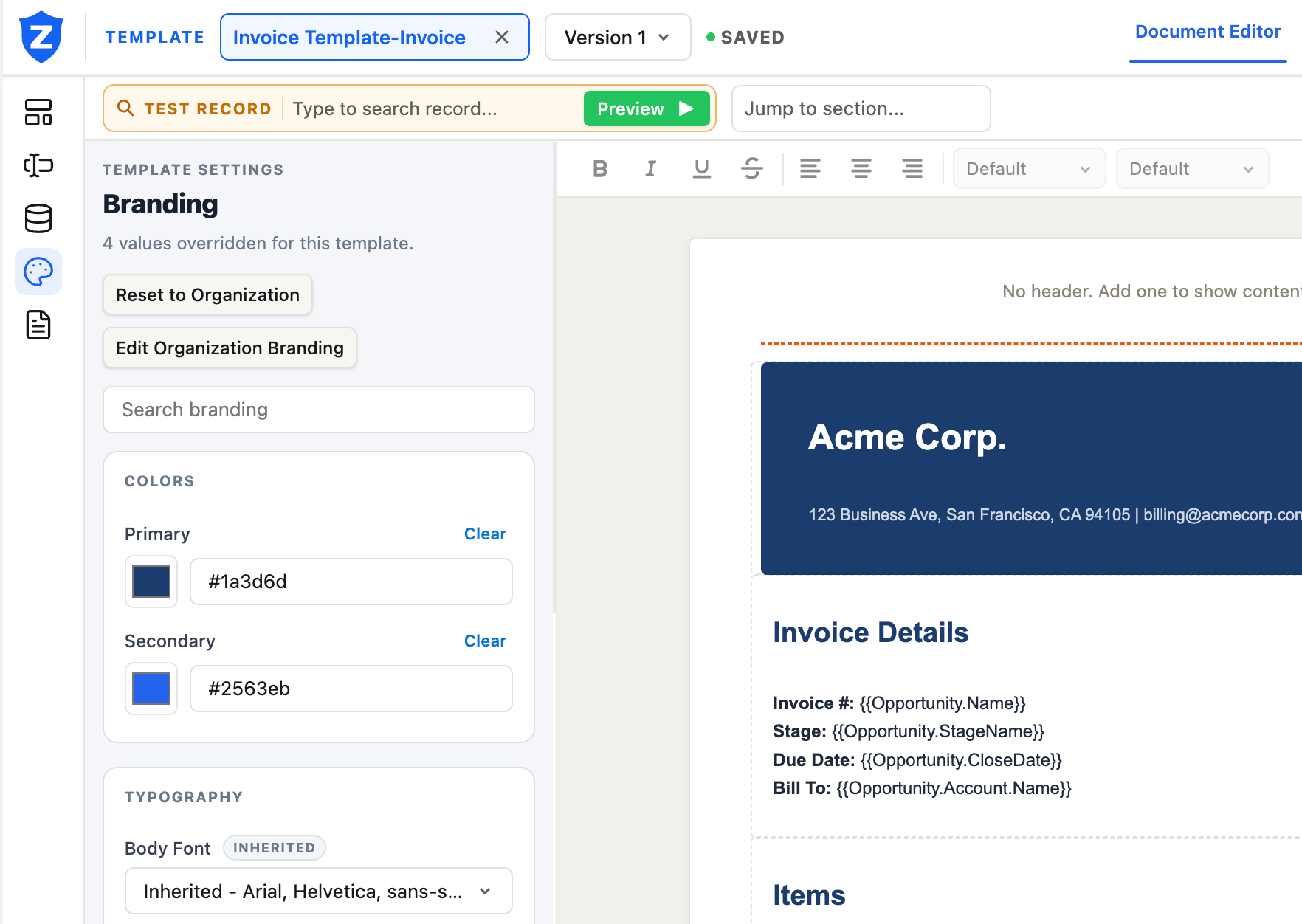 Branding opens as a live panel beside the canvas. Changes to colors and typography reflect on the canvas immediately.
Opening an existing template
Type in the template search at the top of the builder to filter by name. Click a result to load it. Recently opened templates appear at the top of the Start screen.