Header and Footer
Add a header and footer to a template on the builder canvas: edit them in place, show page numbers, and control how they print on every page.
The builder canvas has a Header bar above the sections and a Footer bar below them. Whatever you put in a band prints on every page of the PDF. Use them for a logo and document title at the top, and a company address and page counter at the bottom.
View and edit a band
- At rest, a band shows a read-only preview of how it prints, without the editor controls. A dashed guide line labelled Header or Footer separates it from the body, and Edit shows on hover.
- Add (or Edit) opens the band for editing. Click Save to return to the read-only view.
- The open bar is drawn at least as tall as the page's top or bottom margin, so you can see the space it prints in.
The header and footer are saved with the template and print on every page.
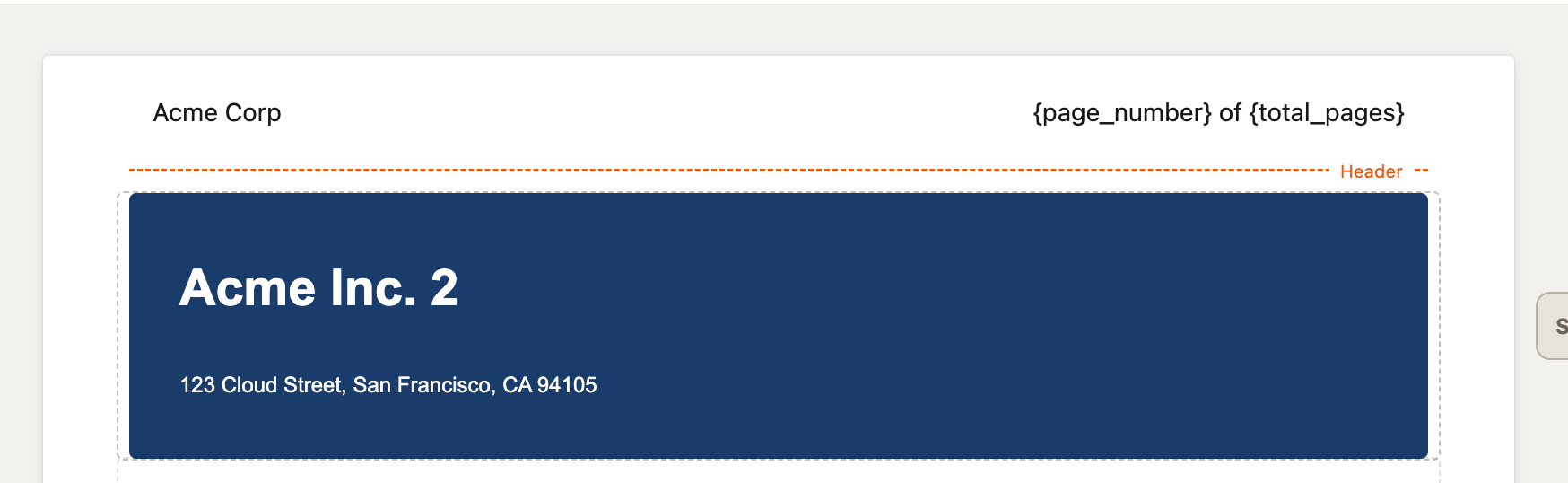 At rest, the header shows how it prints. The dashed line marks where the header ends and the body begins.
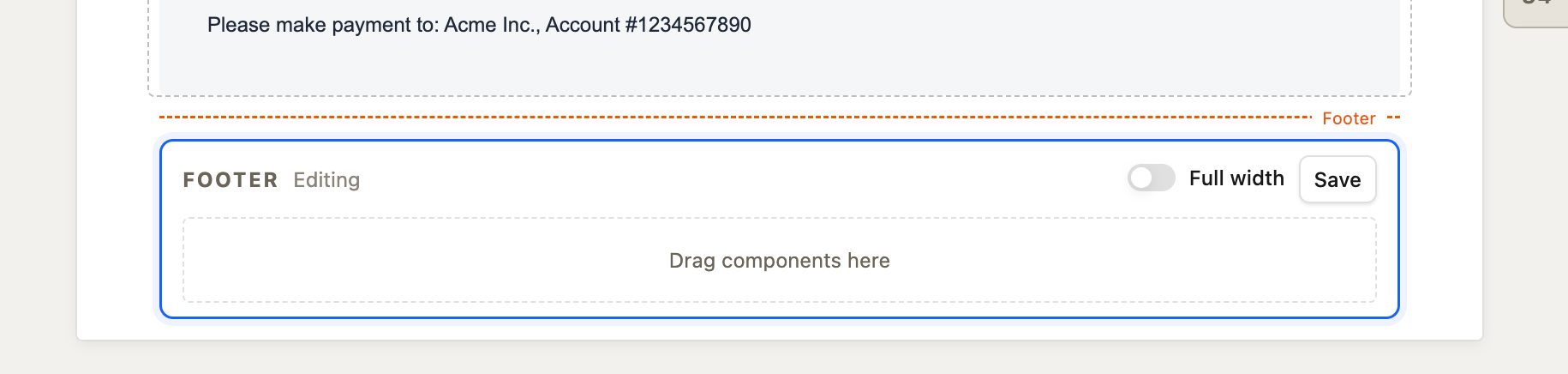 An empty footer band open for editing. Drag components into it, then click Save.
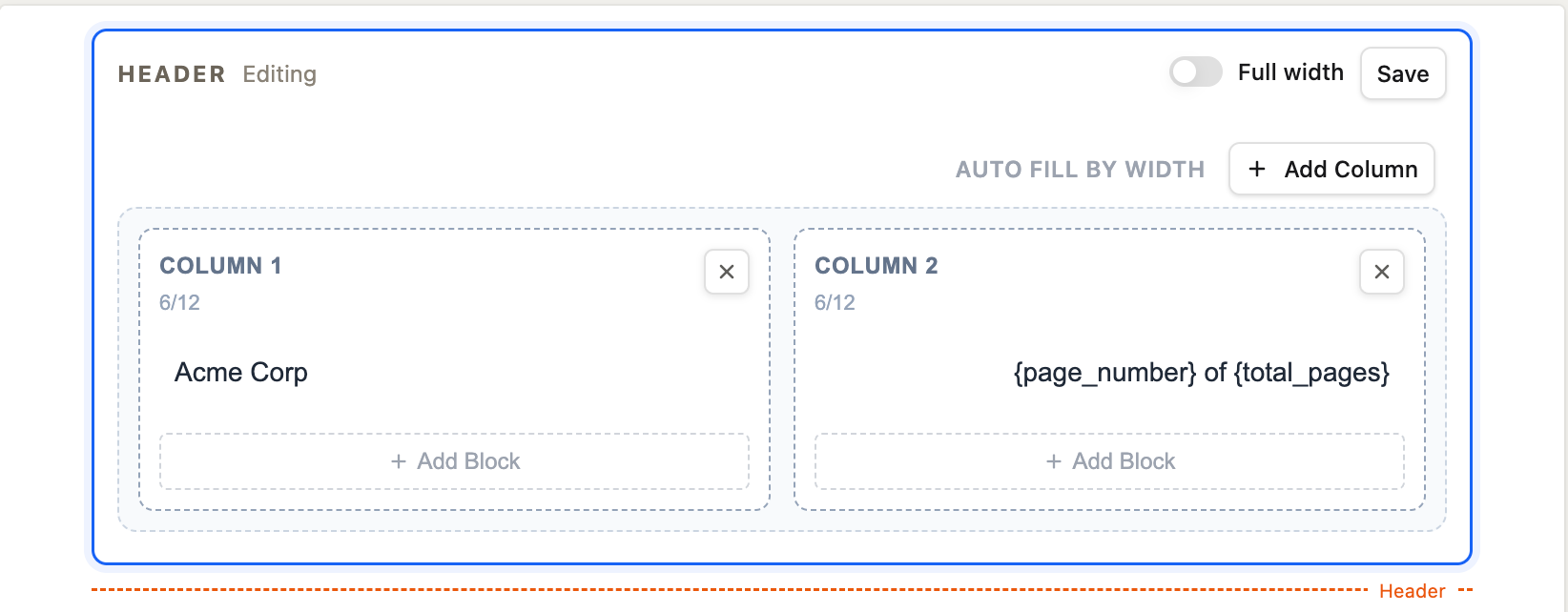 The header band open for editing, with a Full width switch and Save button.
What a band can hold
Drop these into an open band, with merge fields where they make sense: text, headings, paragraphs, links, images, grids, dividers and line breaks.
Tables, lists and page breaks cannot go in a header or footer. Saving one is rejected with a message naming the block and the band. Versions saved earlier keep printing.
Full width and spacing
A band has no padding or margin by default. The Full width switch next to Save makes the band run across the page's side margins in the PDF, which suits a colored header bar or a logo that reaches the page edge.
Keep a band inside its margin
A band prints inside its page margin. A header taller than the top margin overlaps the body, and a footer taller than the bottom margin is cut off at the page edge. The band shows a warning when it is drawn taller than its margin. Raise the margin in Page Setup or make the band shorter.
Page numbers in a band
Type {page_number} and {total_pages} into any text in a header or footer, including next to a logo:
Footer:
  Koshine Tech Labs · koshinetechlabs.com        Page {page_number} of {total_pages}
 In the PDF,
{page_number} and {total_pages} print the real page and page count.
Typing { and the start of a name lists the matching system variables.
When a template has a header (or footer) band, the page numbering set in Page Setup for that margin is not printed, so the two never hide or overlap each other. Its start number still applies to {page_number}. A template without a band in that margin prints Page Setup numbering as before.
Templates saved before 1.11.0
Headers and footers saved earlier open in the same editor:
- A page-number or page-count block becomes a text block with
{page_number}or{total_pages}, so it shows, edits and saves. - A block a band cannot hold (table, list, page break, nested section, caption) shows as a marker in the band, with a Remove button while you edit. Saving names the block and the band.
Override mode
In override mode the active version's header and footer print as they are. They cannot be edited there.
See also
- Page Setup — paper size, margins and page numbering
- System Variables —
{page_number}and{total_pages} - Layout Elements — dividers, line breaks and columns you can use in a band