Export and Import Templates
Export a template version as a .zadt file and import it into another org, with schema validation before anything is saved.
A template version can be exported as a .zadt file and imported into another org. The file carries the template's structure, header and footer, data sources, conditions, branding, and page setup. Images travel as placeholders; their files stay in the source org.
Exporting a template
Click Export .zadt in the builder toolbar. If you have unsaved changes, the builder asks you to Save & Export first.
The file is named after the template and downloaded to your browser's default location. Keep it alongside deployment notes or in a shared archive.
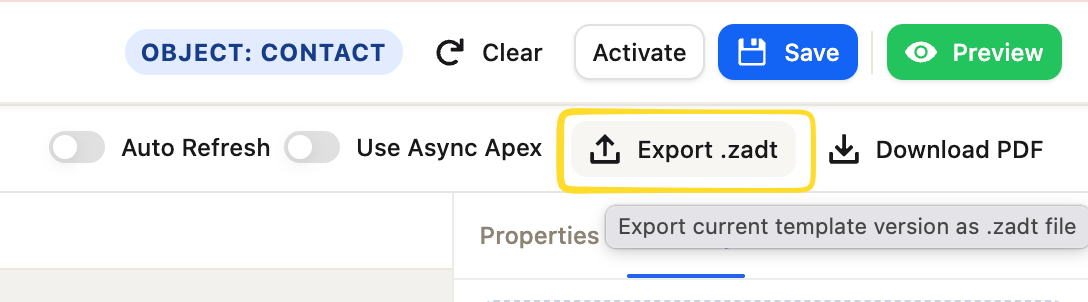 Export .zadt sits in the toolbar next to Download PDF. The tooltip confirms what it exports.
Permission required: any user who can open the builder can export.
Importing a template
Click Import .zadt in the toolbar, or use the button in the Start dialog. The file picker accepts .zadt files only. Files over 3 MB are refused before reading.
Permission required: Zero_Export_Admin. Users without it do not see the Import button. Custom permission sets that should allow import need the ZeroExportImportService class added.
Validation
Before writing anything, import checks every reference in the file against the target org:
| What is checked | Action if missing |
|---|---|
| Objects | Listed with Object Manager link to create |
| Fields | Listed with the field's object link |
| Relationship names | Listed |
| Filter and sort fields | Listed |
| Required fields | Listed |
| Parent source references | Listed or cleared by Eliminate & Import |
| Visibility condition fields | Listed |
| Parent Lookup role (removed in 1.12) | Reported as unsupported; Eliminate & Import drops it |
If everything matches, Import proceeds immediately.
 Import .zadt is in the same toolbar row as Export .zadt. It is visible only to Zero_Export_Admin users.
Resolving gaps
Refresh & Import: fix the gaps in Setup and recheck. Use this when the objects or fields can and should exist in the target org.
Eliminate & Import: clears the missing references and imports the rest. The dialog shows exactly what will be removed before you confirm: missing fields are dropped from data source field lists, and nested sources left without a parent are removed.
What happens to an existing template
| Situation | Result |
|---|---|
| Same key exists | A new inactive version is added |
| Same name, different key, same category | Blocked until the name conflict is resolved |
| Locked template | Blocked |
| Version does not compile | Imported and reported; uses legacy merge until saved |
The imported version is always inactive. Activate it in the template manager when ready.
Branding
The source org's brand is applied to the imported template only. The target org's global brand and other templates are not affected. Color theme tokens (theme(primary-500)) in the template's styles resolve against the target org's brand when documents are generated.
Images
Images are imported as placeholders at their original size and position. After import, open the template in the builder and re-upload each image. The placeholder shows "No image selected" on the canvas and is skipped in the PDF until a file is uploaded.
A sandbox-to-production workflow
- Build and test the template in sandbox.
- Export as
.zadt. - Import into production. The validation step flags any fields missing in production.
- Fix gaps (or use Eliminate & Import for intentional schema differences).
- Activate the imported version.