What's New in ZeroExport 1.12: Start Screen, Left Rail, and Builder Polish
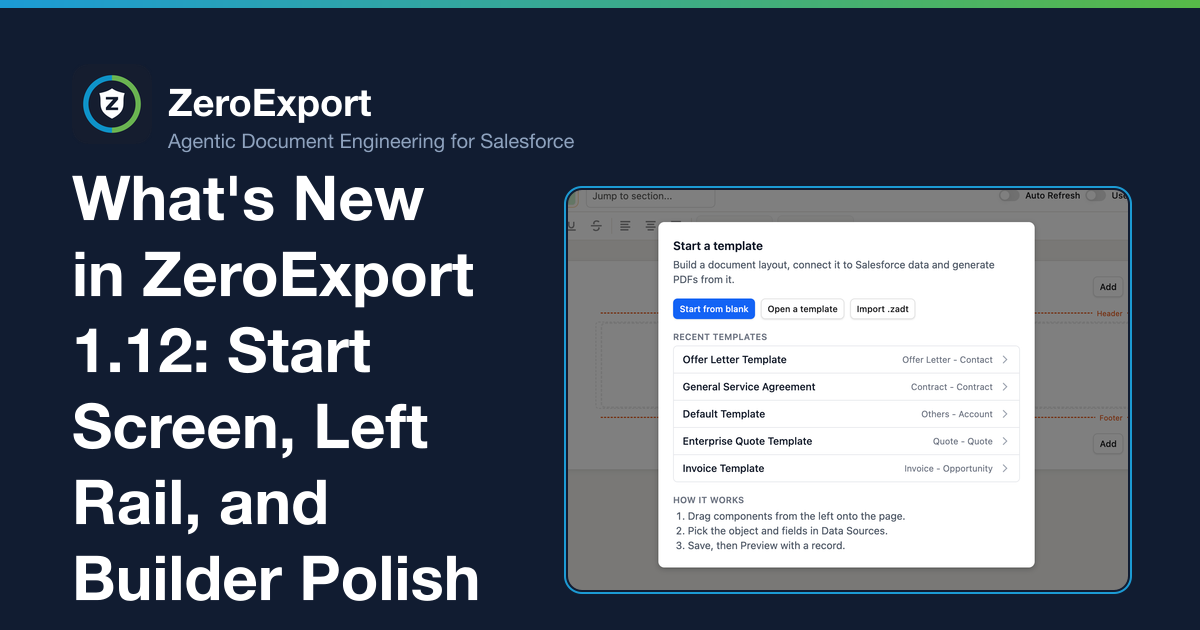
ZeroExport 1.12 adds a start screen, moves data sources and branding to the left rail, lists all visibility conditions in one place, and unifies every builder dialog.
ZeroExport 1.12 is the largest builder update since the quick styles bar shipped in 1.10. The headline features, template export/import and signature blocks, have their own posts. This one covers the builder changes that affect your day-to-day workflow: a start screen that orients new users, a left rail that keeps data sources and branding always reachable, a conditions list that makes visibility management practical, and polish that closes several long-standing gaps.
A start screen for new templates
With no template open, the builder now shows a Start a template dialog instead of a blank canvas. It offers:
- Start from blank: opens the Save dialog in a setup mode that asks for name, key, category, primary object, record scope, and description before anything is saved.
- Open a template: opens the Templates tab.
- Up to five recent templates, ordered by what you last opened in this browser, then by last viewed date across the org.
- A short three-step how-it-works summary.
Before 1.12, clicking "Create New" in the template search did nothing. Now it and "Start from blank" open the same setup form, and the builder works on the new template immediately, with the Data source editor starting on the chosen object, without waiting for a save.
The Test record search remains visible but disabled until a template is chosen or created.
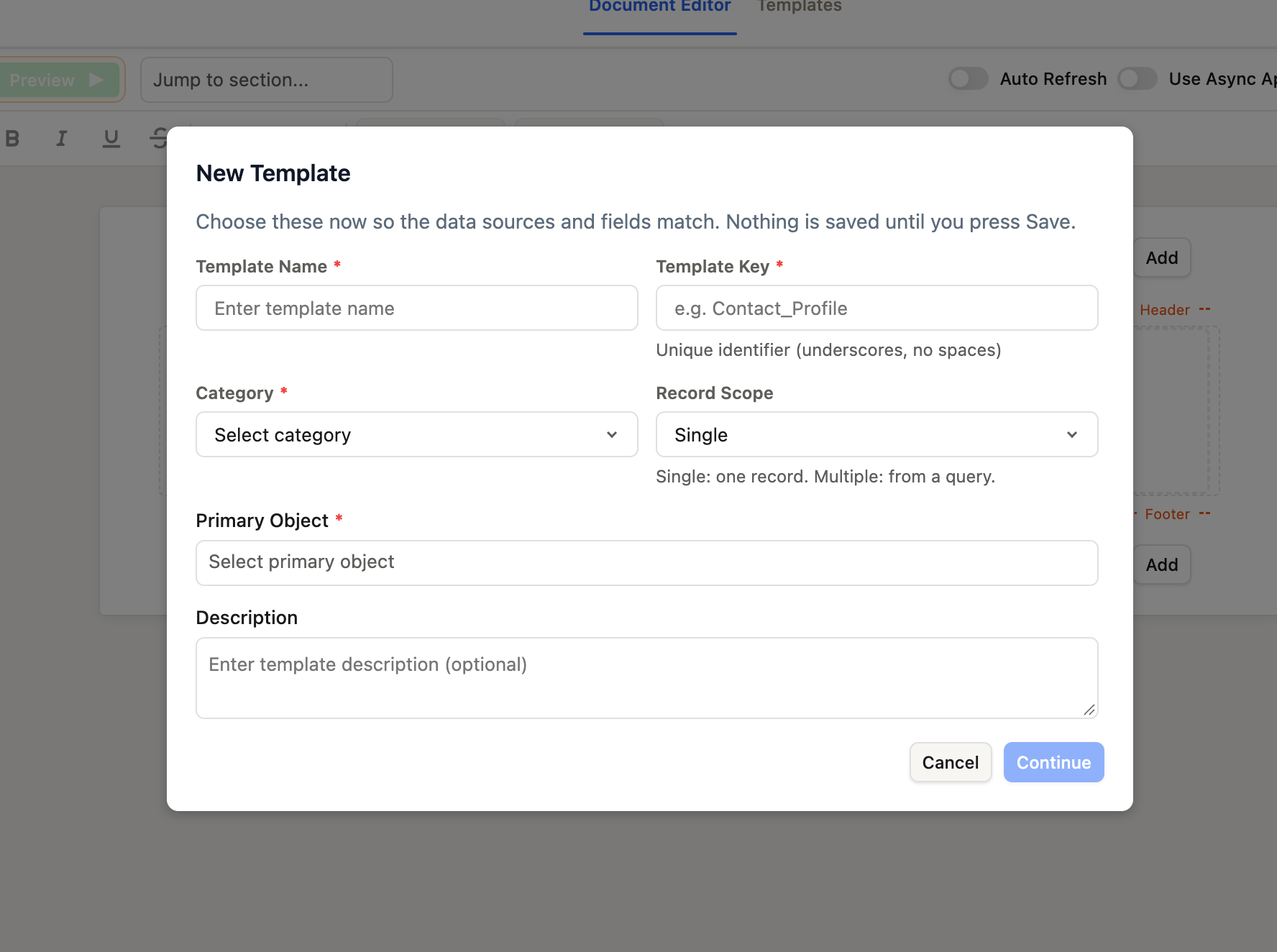 The New Template setup form. Fill in the details and click Continue. Nothing is saved until you click Save in the builder.
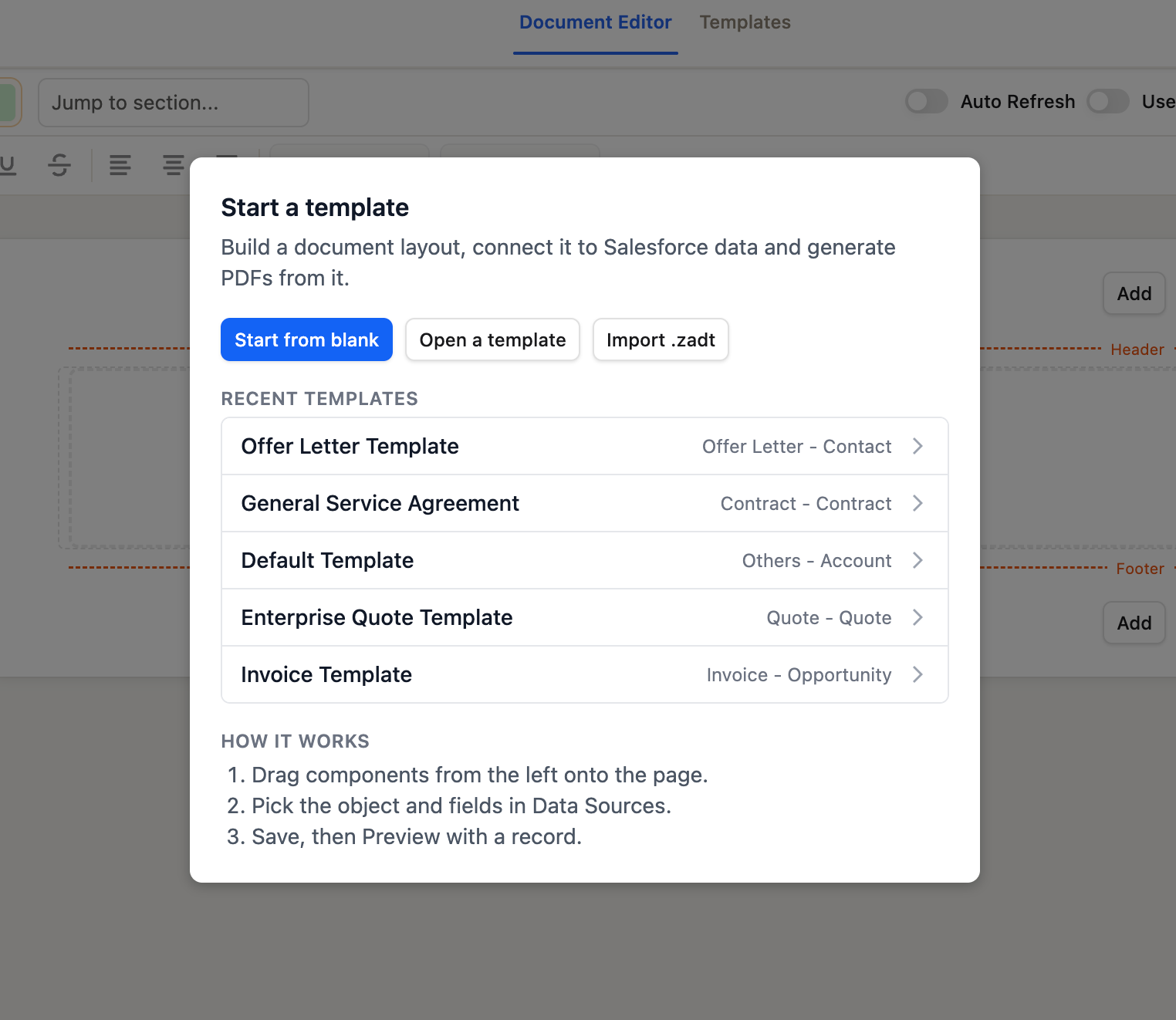 The Start screen on first load. Recent templates are ordered by what was last opened in this browser.
Data source, branding, and page setup in the left rail
The Data Sources and Template Settings tabs are gone. Their content moved into the left rail:
| Rail button | What it opens |
|---|---|
| Blocks | The palette (unchanged) |
| Fields | Merge fields (unchanged) |
| Data source | The data source editor, replacing the canvas |
| Branding | A panel beside the canvas: changes show live |
| Page setup | The page setup editor, replacing the canvas |
This means data sources and page setup are one click away from the canvas at all times, not buried in a tab. Branding now shows a live preview beside the canvas, so you can see the effect of a color change without switching views.
The read-only Template Details view that used to live in Template Settings is removed; template metadata is accessible from the Save dialog.
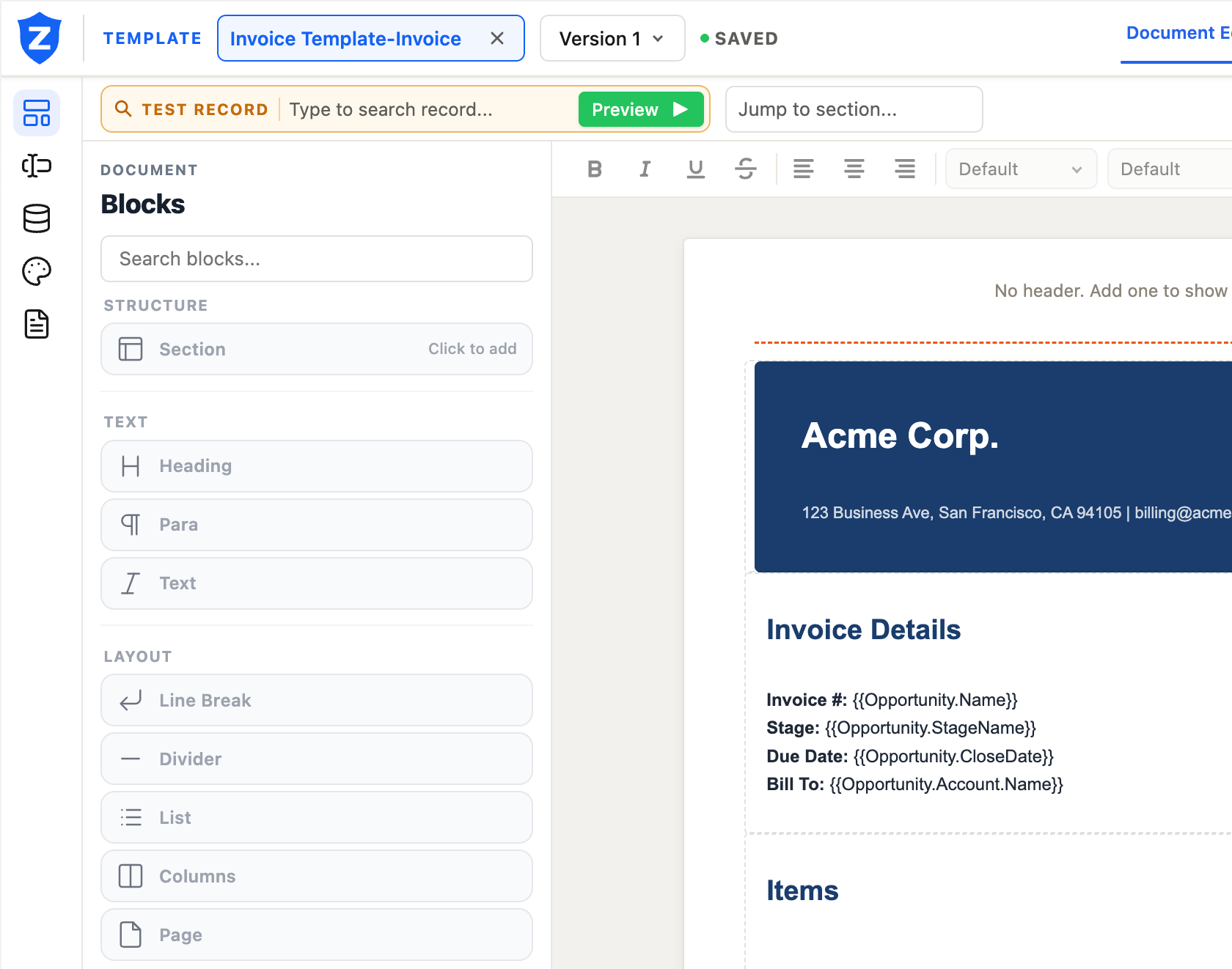 The left rail with the Blocks palette open. Data source, Branding, and Page setup are the third, fourth, and fifth buttons.
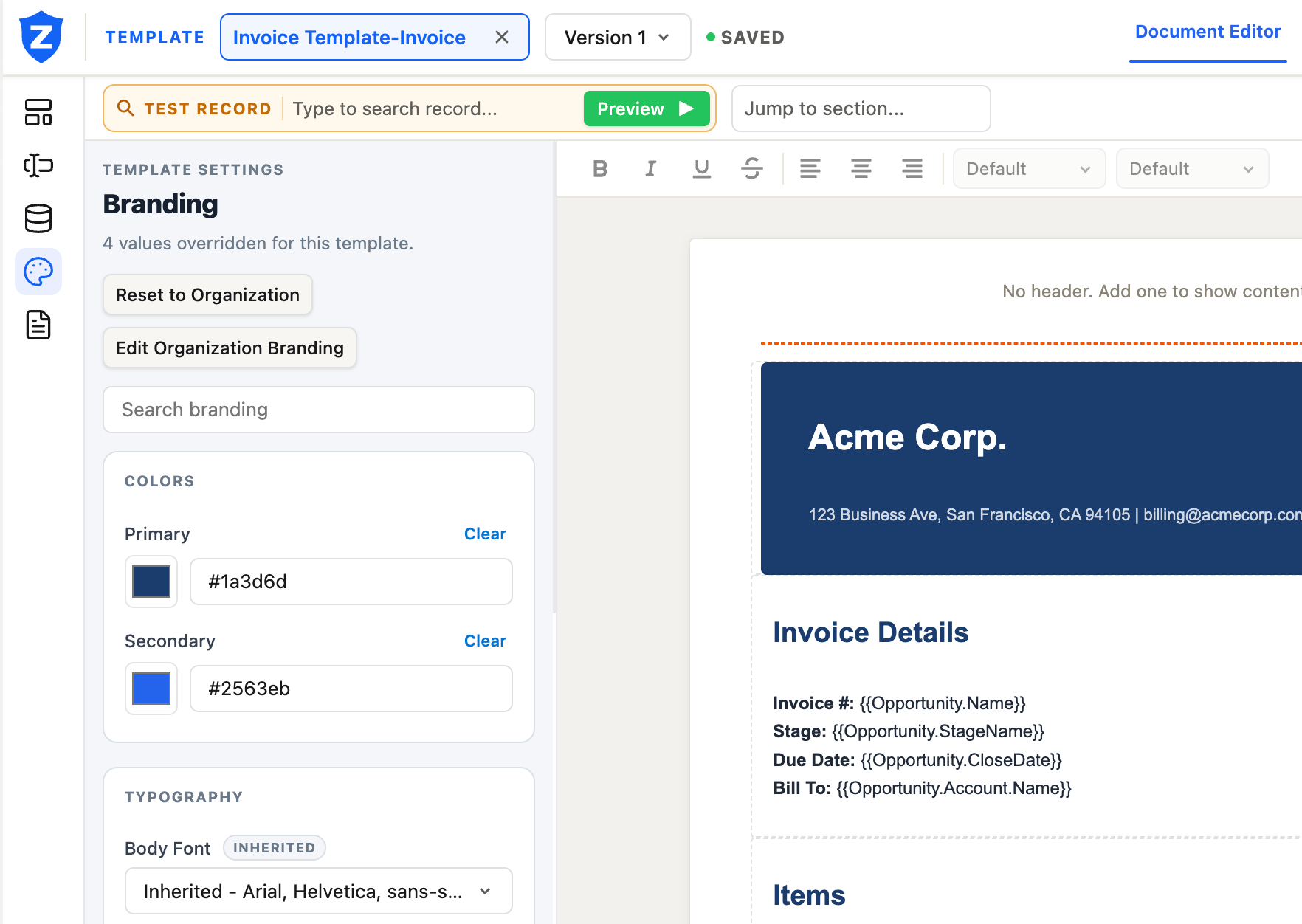 The Branding panel opens beside the canvas. Color and typography changes show on the canvas as you make them.
Visibility conditions list
Managing conditions on a complex template used to mean selecting each element, opening the Visibility tab, and reading the condition there, one element at a time. In 1.12, the Visibility tab now shows the current element's condition and, below it, every condition on the template.
For each condition, the list shows:
- What it checks (the field, operator, and value)
- Every element it is placed on, with the visibility setting (visible or hidden)
From the list you can:
- Go to: selects the element and opens its Visibility tab
- Edit: opens the condition editor
- Remove: takes the condition off one element
- Delete: removes the condition from every element, after a confirmation
This makes it practical to audit all the visibility logic on a template at once, and to clean up conditions that accumulated across revisions.
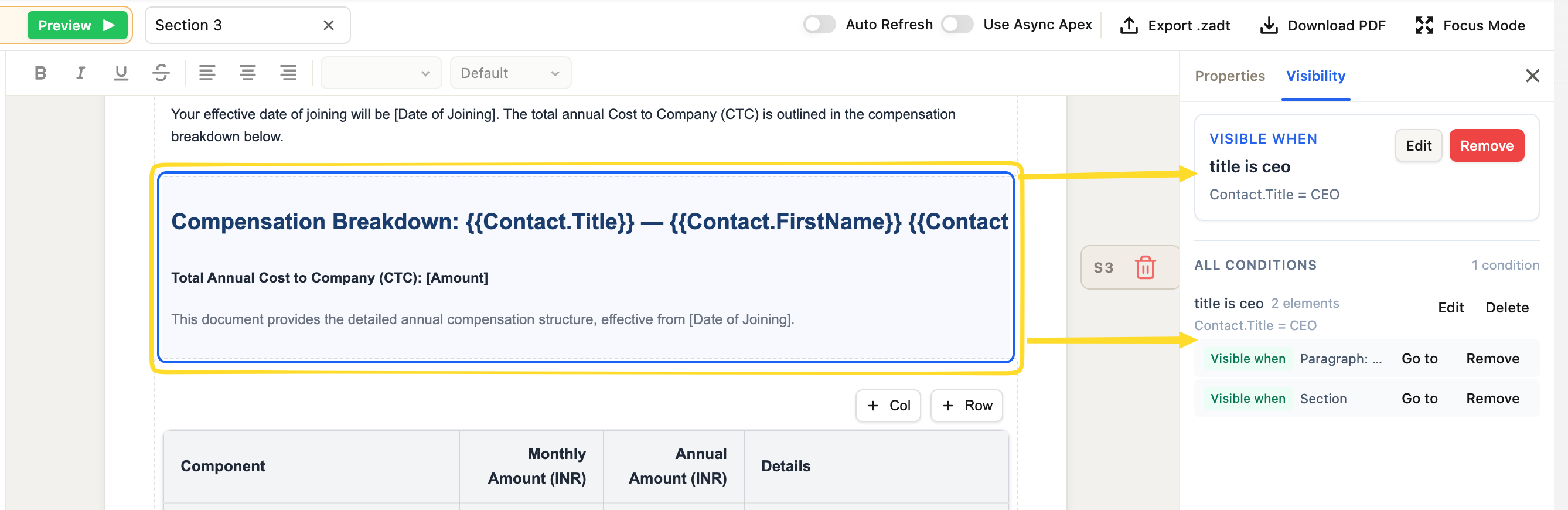 The ALL CONDITIONS list in the Visibility tab. The selected element's condition is at the top; every other condition on the template is listed below it.
Strikethrough in the quick styles bar
The quick styles bar above the canvas adds a Strikethrough button alongside bold, italic, and underline. Like the others, it formats a text selection when text is selected, or the whole block when nothing is selected.
The Properties panel no longer repeats these buttons. The bar is now the single place for inline text formatting.
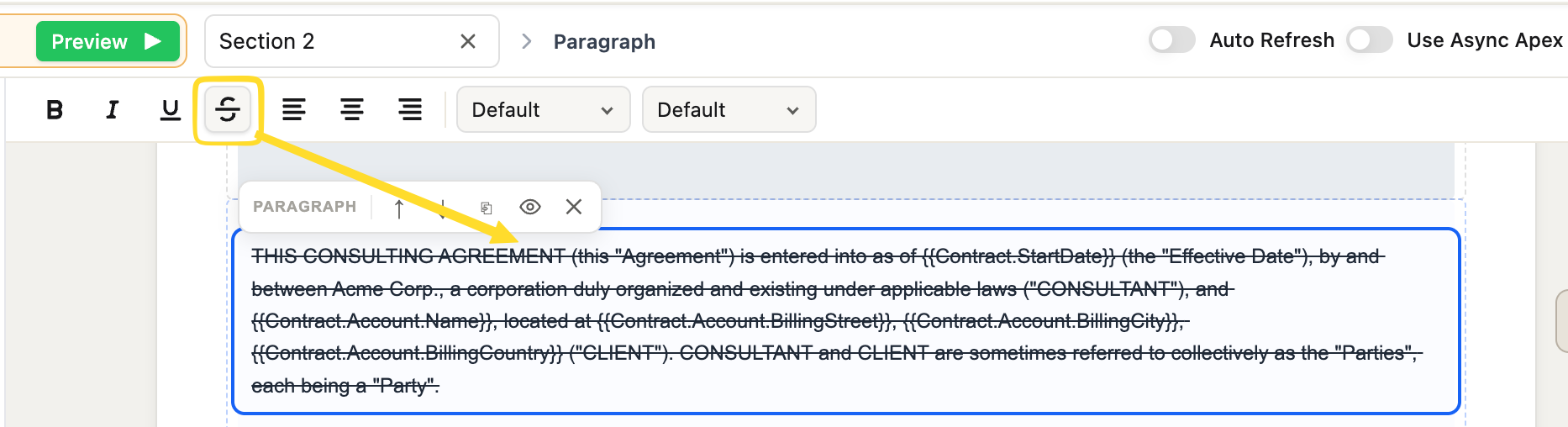 Strikethrough in the quick styles bar. With no text selection, clicking it strikes through the entire block.
Template manager: refresh and delete
Two new actions in the template manager:
Refresh reloads the template list from the server. Useful when another user saved a template while you had the manager open.
Delete appears on inactive templates that are not system or locked templates. A confirmation dialog names the template and states that all versions are permanently deleted. Active templates cannot be deleted. Deactivate first.
The server enforces the same rule, so the button is not just a UI guard.
Consistent dialogs throughout the builder
Before 1.12, different dialogs had different behaviors: some closed on Escape, some did not, some had slightly different field styles; the Save Template dialog's Primary Object lookup was cut off by the dialog's scroll area.
All dialogs now share one design: Save template, image upload, branding, unsaved changes, delete section, error, override save, Visibility panel dialogs, and template manager dialogs. The consistent behaviors are:
- Escape and click outside close the dialog and count as Cancel
- Primary Object in the Save dialog opens its suggestions above the dialog's scroll area, so the list is never cut off
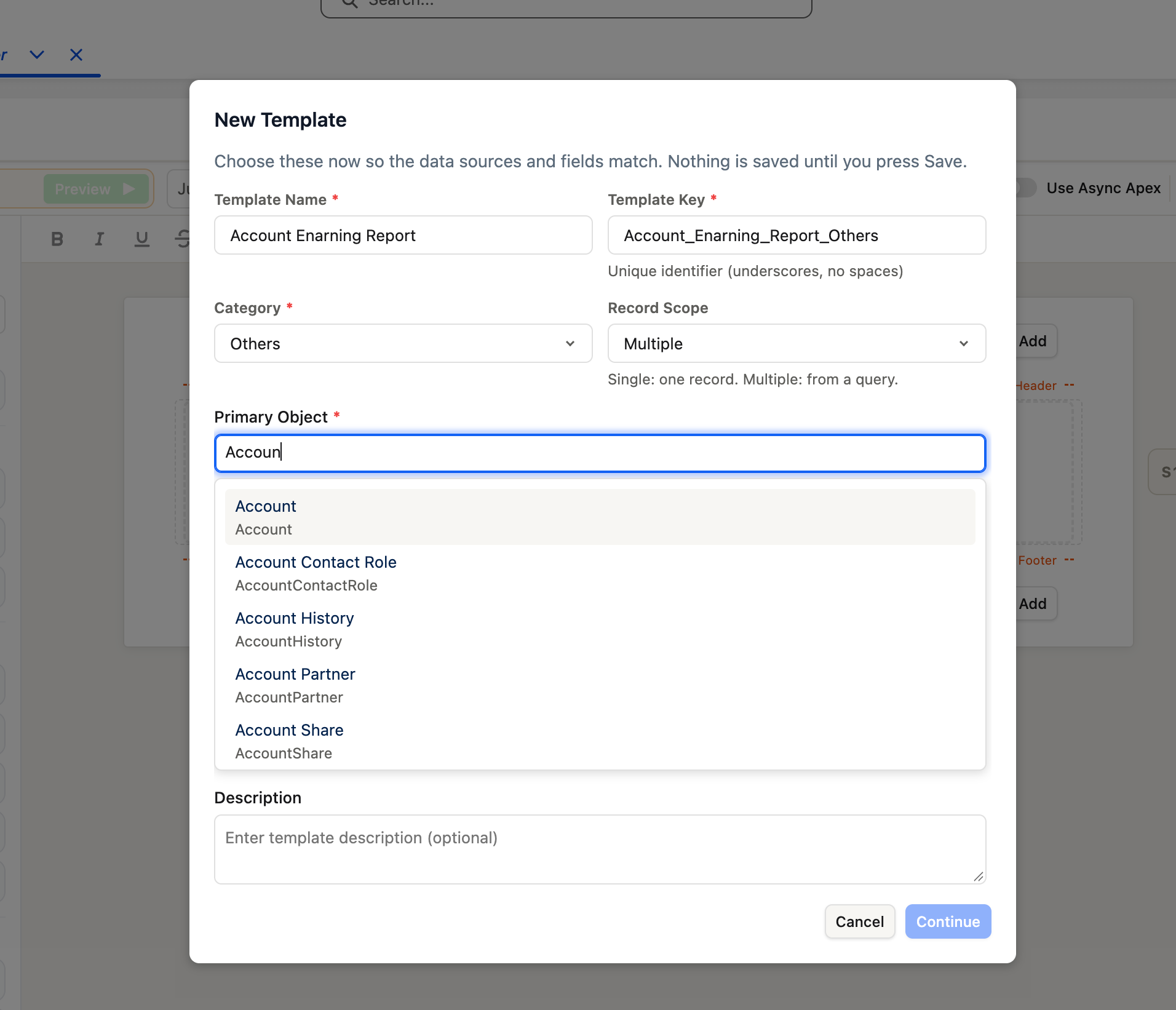 The Primary Object lookup opens above the dialog. The suggestions are never clipped by the scroll area.
Custom tag enforcement at save
Data sources have always had an optional Tag Name. In 1.12, once a source has a custom tag, the tag is the only name the template may use in merge fields. Saving a template with {{Opportunity.Name}} when the source has the tag opp is now rejected.
If your tag differs from the name the template currently uses, the data source editor shows Replace in template, which rewrites all references in the body, header, and footer without saving. Run it, review the changes, then save.
This applies on save only. Templates that already save continue generating.
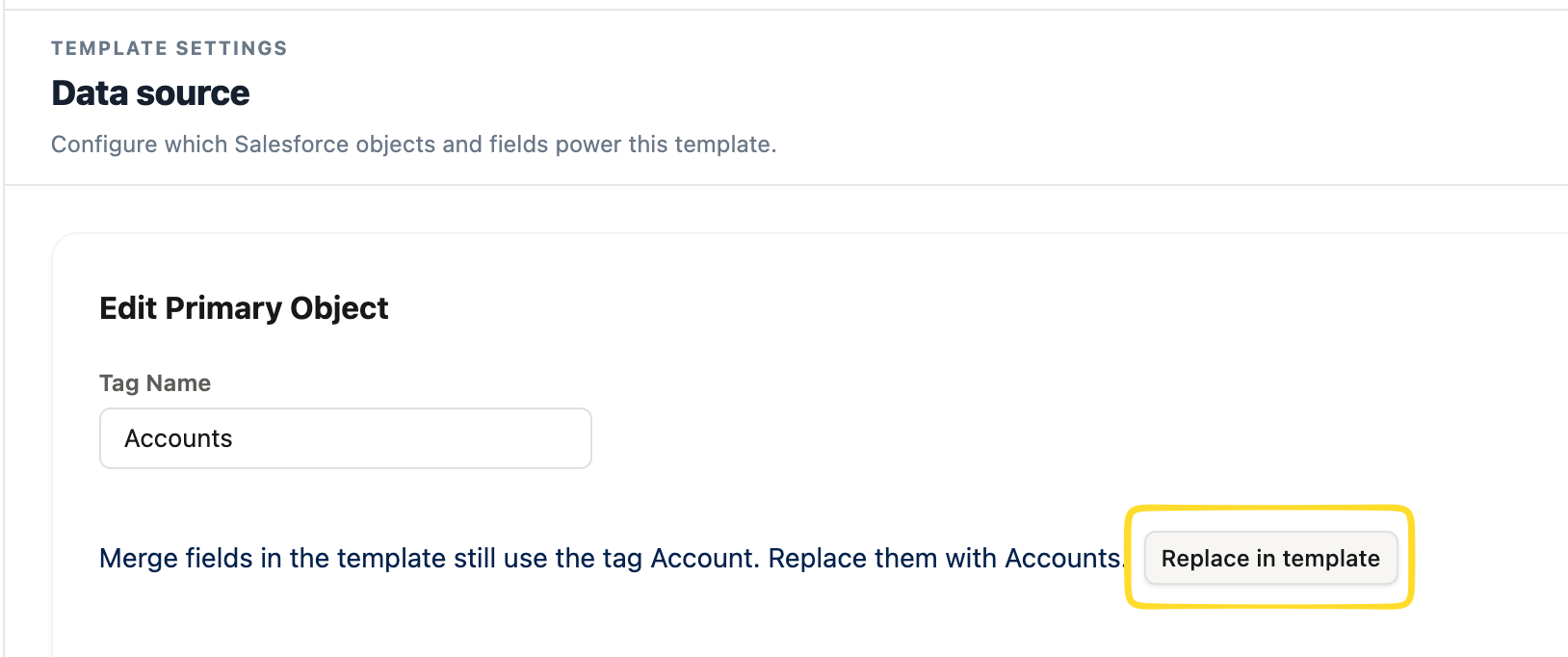 When the tag differs from what the template's merge fields use, the data source editor shows Replace in template. Click it to rewrite all references before saving.
Repeating section fix
A fix worth highlighting for anyone with complex templates: a repeating section over a parent list, with a table of that parent's child rows inside it, now prints each parent's own rows.
Before 1.12, every child row was printed under every parent. A section over opportunities with line items showed all line items under every opportunity. The fix applies to both the compiled and legacy merge with no save needed. If you have templates with this layout, check their output after the upgrade.
FAQ
Where did the Data Sources and Template Settings tabs go?
They moved to the left rail. Use the Data source, Branding, and Page setup buttons to open them.
Can I move a template to another Salesforce org?
Yes. Export the template as a .zadt file and import it in the target org. Import validates every object and field reference before saving anything. See Export and Import Salesforce Document Templates Across Orgs.
Do I need to resave templates after upgrading to 1.12?
Most templates keep working unchanged. Templates saved before 1.9.0 should be saved once to pick up the visibility count fix, and templates with custom data source tags may need Replace in template before the next save. See the 1.12 upgrade notes.
Does ZeroExport send documents to DocuSign?
No. ZeroExport generates the PDF with signature blocks that carry anchor text. Your existing e-sign connector sends it, and the e-sign platform places the fields. See E-Sign Ready Documents from Salesforce.
Related reading
Ready to try ZeroExport?
Start generating documents directly in your Salesforce org. No integrations, no setup overhead, no complexity.