Export and Import Salesforce Document Templates Across Orgs
Move ZeroExport templates between Salesforce orgs with one .zadt file. Schema validation checks every reference before anything is saved.
Moving a document template between Salesforce orgs used to mean recreating it by hand, copying JSON through the developer console, or maintaining a separate deployment pipeline just for template content. ZeroExport 1.12 adds a first-class export and import path: one file carries the template structure, data sources, branding, conditions, and page setup, and the import step checks it against the target org before writing anything.
What is a .zadt file?
A .zadt file is a portable archive of a single template version. Export produces one for the current saved version; import reads it in another org, checks it, and creates either a new template or an inactive version on a template with the same key.
The file contains:
- The full template body, header, and footer
- All data sources and their configuration
- Visibility conditions
- Branding overrides set on the template
- Page setup (size, orientation, margins, page numbering, background)
What it does not carry: image files. Images travel as placeholders. Their size and position are preserved, but the actual files stay in the source org. After import, replace them with uploads in the target.
Exporting a template
Open the template in the builder, then click Export .zadt in the toolbar. If you have unsaved changes, the builder will ask you to Save & Export first.
The download is named after the template and version. Keep the file somewhere sensible, such as a shared folder, a release archive, or alongside your deployment notes. The .zadt extension is specific to ZeroExport, so the browser will not try to open it.
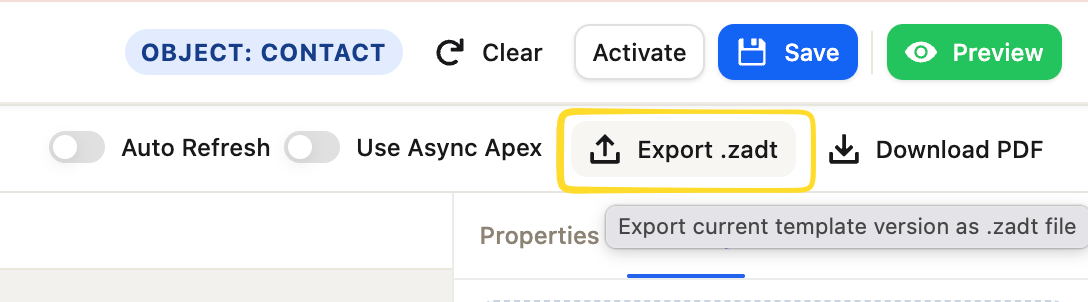 Export .zadt is next to Download PDF in the toolbar. The tooltip confirms what will be exported.
Importing a template
In the target org, click Import .zadt in the toolbar, or use the button in the Start dialog. The file picker accepts .zadt files only. Files over 3 MB are refused before reading.
Import requires the Zero_Export_Admin permission set. Users without it do not see the Import button.
The validation step
Before writing anything, import checks every reference in the file against the target org:
- Objects and fields that do not exist in the target org
- Relationships used for data sources
- Filter and sort fields
- Required fields
- Parent source references in nested data sources
- Visibility condition fields
Each missing piece is listed with the Setup steps to fix it, so you can resolve the gap without guessing.
 Import .zadt is in the same toolbar row as Export .zadt. It opens a file picker that accepts .zadt files only.
If everything matches, Import proceeds immediately.
Dealing with gaps
When some references are missing, you have two paths:
Refresh & Import: fix the issues in Setup, then recheck. Use this when the objects or fields can and should exist in the target org.
Eliminate & Import: clears the missing references and imports the rest. The dialog lists exactly what will be removed before you confirm: missing fields are dropped from data source field lists, nested sources without a parent are removed, and so on. Use this when the target org intentionally has a narrower schema.
What happens to an existing key
If the target org already has a template with the same key:
- A new inactive version is added to it.
- If a template with the same name exists under a different key in the same category, the import is blocked and you are told why.
- Locked templates are blocked.
The imported version is always inactive. Activate it in the template manager when you are ready to use it.
Branding across orgs
The source org's brand is applied to the imported template only. The target org's global brand and its other templates are not affected. If the source template had color theme tokens (theme(primary-500)) in its styles, they will resolve against the target org's brand when documents are generated.
A practical workflow: sandbox to production
A common use for .zadt is validating a template in a sandbox before promoting it to production:
- Build and test the template in sandbox.
- Export as
.zadt. - Import into production. The validation step tells you if any fields are missing in production, which can happen if sandbox had an extra custom field.
- Fix any gaps, then import again or use Eliminate & Import if the gap is intentional.
- Activate the imported version.
This is faster and more reliable than recreating the template by hand and reduces the risk of a production template differing from what was tested.
Sharing templates with other organizations
If you are delivering a template to a customer or sharing a starting point with another team, the .zadt format lets them import it into their own org without any access to yours. The import validates everything against their schema, so missing fields surface immediately rather than causing empty merge fields in generated documents.
For a template that uses only standard Salesforce objects and fields, the validation step will usually pass immediately. For templates that rely on custom fields or objects, include the Setup instructions alongside the file.
FAQ
Does import overwrite my existing active version?
No. The imported version is always inactive. Your active version keeps generating documents until you activate the new one.
Can I import a .zadt file from a newer version of ZeroExport into an older one?
The file records the compiler version it was built with, but import does not use it. If the imported version does not compile in the target org, it is imported and reported, and uses the legacy merge until a save compiles it.
Does the import check permissions before writing?
Yes. ZeroExportImageService.saveTemplateImages checks that the running user can read both the template version and each image file before writing. The import refuses to write a version the user cannot read.
Can Zero_Export_User accounts import?
No. Import is granted to Zero_Export_Admin only. Zero_Export_User accounts do not see the Import button.
Related reading
Ready to try ZeroExport?
Start generating documents directly in your Salesforce org. No integrations, no setup overhead, no complexity.