E-Sign Ready Documents from Salesforce: Signature Blocks in ZeroExport
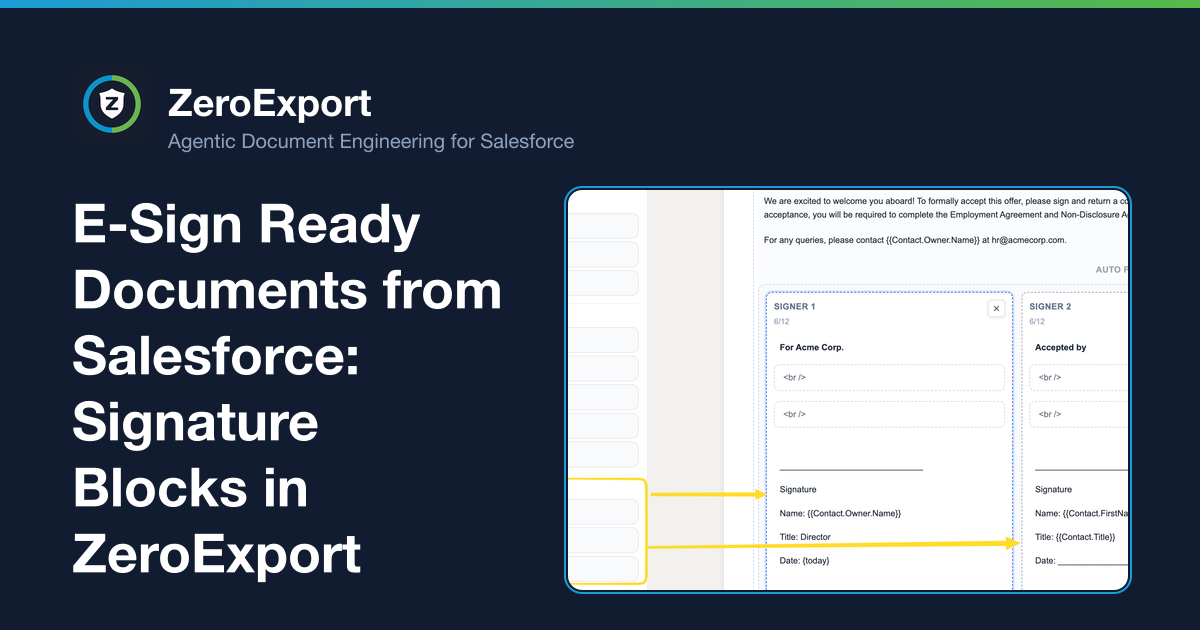
Add DocuSign- and Conga Sign-compatible signature blocks to any ZeroExport template in seconds. Three presets place the right anchor text automatically.
Generating a document from Salesforce is usually only half the job. Contracts, offer letters, and service agreements then need signatures, which means downloading the PDF, uploading it to DocuSign or Conga Sign, and placing the signature fields by hand.
ZeroExport 1.12 adds signature blocks that skip that last step. Drop a preset onto the canvas and invisible anchor tags are placed automatically. E-sign apps use those anchors to place signature and date fields precisely, without manual drag-and-drop in the signing app.
What are signature blocks?
A signature block is a preset in the builder palette, in a new Signatures group. Each preset drops a grid of signer elements (a signature line, name and title fields, a date line) built from standard paragraphs and line breaks. No new block type is introduced; a saved template stores a plain grid.
Three presets are available:
Signature: one signer with Signature, Name, Title, and Date lines.
Two signatures: two signers side by side in a grid, each with the same lines.
Signature (prefilled): one signer with the current user's name ({user_name}), email address ({user_email}), and today's date ({today}) already filled in.
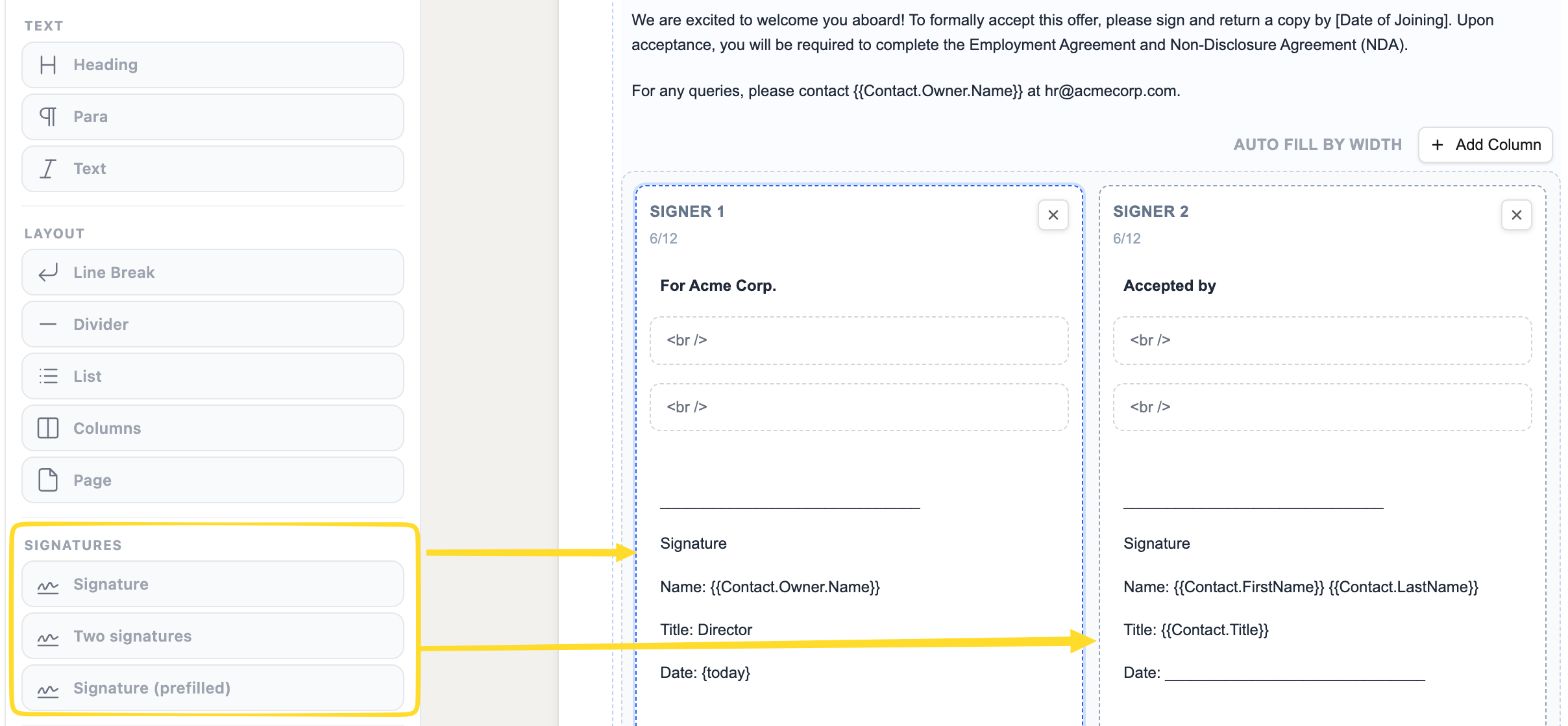 The Signatures group in the palette (bottom left), and a Two signatures block on the canvas after dropping it.
How the anchor text works
Each signer carries invisible anchor text that e-sign applications use to place their fields:
/sn1/before the first signer's signature line/dt1/after the first signer's date line/sn2/and/dt2/for the second signer
DocuSign, Conga Sign, and similar platforms can be configured to scan for these strings and auto-place a signature field at /sn1/ and a date field at /dt1/. The signer never sees the anchor text, and it prints in the generated PDF.
| Anchor | Position | E-sign action |
|---|---|---|
/sn1/ | Before signer 1's signature line | Place signature field for signer 1 |
/dt1/ | After signer 1's date line | Place date field for signer 1 |
/sn2/ | Before signer 2's signature line | Place signature field for signer 2 |
/dt2/ | After signer 2's date line | Place date field for signer 2 |
The presets follow DocuSign and Conga Sign anchor conventions. Other platforms that support anchor-text field placement can use the same strings if configured to match.
This means you can generate the document in Salesforce and send it to your e-sign platform without manually positioning fields.
Adding a signature block to a template
- Open the template in the builder.
- Find the Signatures group in the palette (between Layout and Data).
- Drag the preset that fits: Signature, Two signatures, or Signature (prefilled).
- The block drops as a grid. Edit the label text if you want ("Authorized by", "Customer", etc.).
- Save the template.
Generated documents will include the signer grid with the invisible anchors embedded.
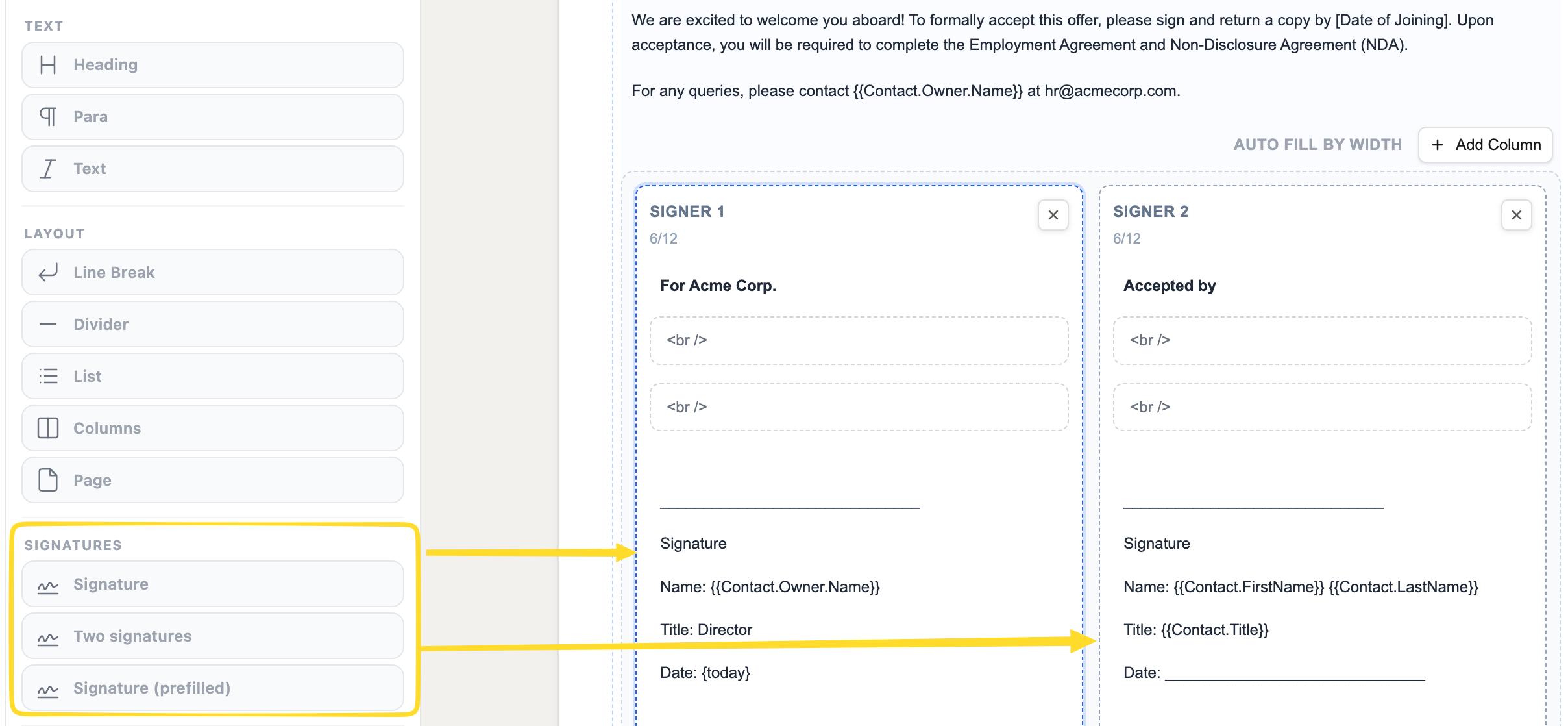 A Two signatures block on the canvas. Edit the header labels and add merge fields where needed, then save.
The prefilled variant
The Signature (prefilled) preset fills in the running user's name and email, plus today's date. Use it for documents where one signatory is always the Salesforce user generating the document, such as an approval, a letter from the account manager, or an internal sign-off.
The tokens resolve at generation time:
{user_name}: the full name of the user generating the document{user_email}: their email address{today}: the date the document is generated
The second signer (the customer or counterparty) is left blank for the e-sign platform to handle.
A practical example: contract generation workflow
A contract generation workflow with ZeroExport and DocuSign typically looks like this:
- A Salesforce user clicks Generate Document on an Opportunity or Contract record.
- ZeroExport generates the PDF with all the populated fields - parties, terms, pricing, the prefilled user signature block.
- The PDF is sent to DocuSign. DocuSign detects
/sn1/and/dt1/and places the customer's signature and date fields automatically. - The customer signs. The completed document returns to Salesforce.
Before signature blocks, step 3 required someone to open DocuSign, upload the PDF, and drag the signature fields onto the right lines. With anchors embedded by the template, that step is automated.
Working with two signers
The Two signatures preset places two signer columns side by side. The anchors for each are independent:
- First column:
/sn1/,/dt1/ - Second column:
/sn2/,/dt2/
For agreements that need two counterparties, both columns are present in every generated document and the e-sign app can route each to the right person.
Styling the signature block
The signature grid uses the same styling controls as any other block. Select the grid or individual columns to adjust:
- Padding between the grid edge and the signer content
- Font size of the label and name lines
- Line color for the signature underline
The presets include column padding and margin set to zero because the grid gap already provides the space. Adjust from there if the layout needs to change.
FAQ
Does ZeroExport integrate directly with DocuSign?
No. ZeroExport generates the PDF. The integration with your e-sign platform (DocuSign, Conga Sign, or others) is handled by whatever connector or flow you already use to send documents from Salesforce. The signature blocks ensure the PDF is ready for auto-placement when it arrives.
What if my e-sign platform uses different anchor strings?
The anchor text in the presets (/sn1/, /dt1/) matches DocuSign and Conga Sign conventions. If your platform uses a different format, edit the invisible anchor text in the dropped block to match, or contact the ZeroExport team.
Can I add more than two signers?
The presets support one and two signers. For more than two, you can duplicate a signer column and adjust the grid manually, though anchor text recognition beyond two signers depends on your e-sign platform's configuration.
Does the prefilled block lock in the name and date?
No. The prefilled block uses merge fields that resolve at generation time. Each generated document will carry the name, email, and date of the user who generated it. The e-sign platform can still override the displayed name with the actual signer.
Related reading
Ready to try ZeroExport?
Start generating documents directly in your Salesforce org. No integrations, no setup overhead, no complexity.