Multi-Level Grouping and Subtotals in Salesforce Document Templates
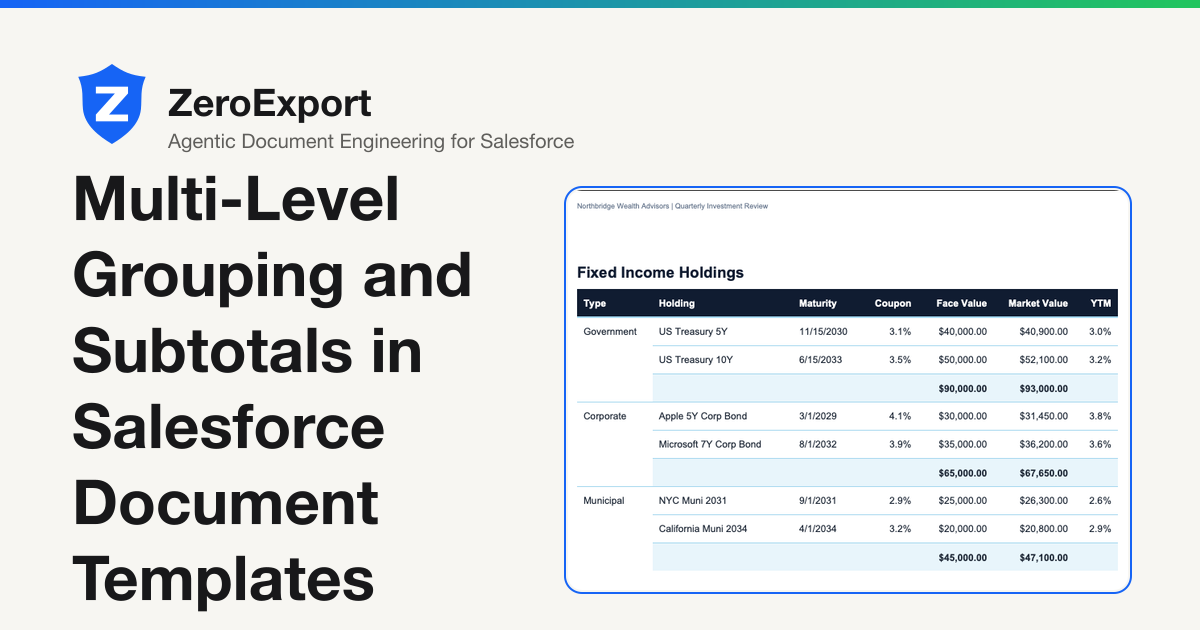
Group a table by a picklist or by parent records, merge the group cells, and close each group with a subtotal row in a ZeroExport template, with no custom Apex.
A flat list of line items works for a simple invoice. It breaks down the moment a document needs to present data in context: grouped by category, with a subtotal at the end of each group, and a total that adds up cleanly.
Portfolio statements, financial summaries, and regulatory reports all need this. Traditional Salesforce document tools either skip it or expect pre-aggregated data from reports, Apex, or custom objects.
Since ZeroExport 1.13.0, a table groups its rows natively. This post shows how to set it up from standard Salesforce data.
What a grouped table looks like
A portfolio statement for a wealth management client lists holdings by asset class, with a subtotal for each:
| Asset class | Holding | Units | Value |
|---|---|---|---|
| Equity | Apple Inc | 120 | $22,800.00 |
| Microsoft Corp | 85 | $31,450.00 | |
| Subtotal | $54,250.00 | ||
| Fixed Income | US Treasury 10Y | 50 | $52,000.00 |
| Corporate Bond A | 30 | $31,500.00 | |
| Subtotal | $83,500.00 |
The Asset class cell is one merged cell across each group. The data is a flat list of Holdings in Salesforce, with the asset class held in a picklist field.
Why this is hard with traditional DocGen
Traditional generators render a flat list in the order it arrives. To produce grouped output, teams usually:
- Build a grouped Salesforce report and export it as a data source
- Write Apex to pre-group and pre-aggregate the records before the template sees them
- Maintain a custom object that mirrors the aggregated structure
Each approach puts logic outside the template. When the grouping changes, several systems change with it.
Step by step: group a table in ZeroExport
1. Add the child data
Open Data source in the left rail. Use the Account as the primary source and add a Child Query for the holdings, selecting the fields the table needs: the picklist you will group by, the name, the units and the value.
2. Build the table
Add a Table from the DATA panel. Put the holding's fields in one row. The row repeats once per holding, with no start or end tags to place. See repeating rows without start and end tags.
3. Group by the picklist column
Select the table. The Grouping section of the Properties panel lists every column the table can group. Tick the asset class column. Its cells merge across each group, and the groups come from the data, so a new asset class creates a new group with no template change.
You can group by:
- a picklist column of a list
- a field of the primary object
- the Name or Id of a parent list
4. Add a subtotal for each group
The grouped column names its group, such as AssetClassTotals. In the Grouping section, choose Add a subtotal row. ZeroExport adds a row after the group's lines, started with a sum of each number column and a label such as "Asset class subtotal". It is an ordinary table row, so edit it on the canvas like any other:
Subtotal: {{AssetClassTotals.sum(Value__c)}}
Holdings: {{AssetClassTotals.count}}
The group name is the root of the merge fields, so the row totals only its own group. Any aggregate works (sum, count, avg, min, max), formatted like the field. The Row section shows which group the row closes (Closes each group of). Each grouped column chooses whether it gets a subtotal row; it is off by default.
5. Add a grand total
A Total row after the table prints once, using the whole document's data. Put an aggregate in it, such as {{Holdings.sum(Value__c)}}. A plain list token like this always totals the whole list; only the group name (AssetClassTotals) totals a group.
6. Add a second grouping level
Grouped columns nest from left to right. Group by asset class and then by another picklist, such as region, to get a subtotal at each level. Grouped columns and parent list levels together can number up to five.
7. Preview with multi-group data
Use the preview with a client that has holdings in several asset classes, and check:
- Each asset class is one merged group
- Each subtotal equals the sum of its group's rows
- The grand total equals the sum of all holdings
Grouping by parent records
Grouping also follows relationships. In a table over Accounts, Opportunities and line items, group by the Name or Id of a parent list. An Account cell then spans all its Opportunities, and each Opportunity cell spans its line items. Records are matched by Id, so two records with the same name stay apart. Subtotals for each parent use the row's Subtotal role.
A nested table's parent rows can also be grouped by a picklist of the outermost parent list. With {{Opportunities.StageName}} above each opportunity's line items, deals with the same stage are drawn together, and the stage's subtotal totals its deals and their line items. See Complex table rendering.
FAQ
Can I group by a picklist value?
Yes, with the Grouping section on the table. You can also group by a field of the primary object, or by the Name or Id of a parent list.
Can I group by a formula or text field on a child record?
The Grouping section lists the columns a table can group, so check which of your columns appear there. Picklist columns are the supported case for child lists, and in a nested table a picklist of the outermost parent list.
What can a group's subtotal row show?
Any aggregate of the group through its group name: sum, count, avg, min and max, formatted like the field, plus the group's own value such as {{AssetClassTotals.AssetClass__c}}. A sum over records with no value prints a formatted 0.
How many levels can I group?
Grouped columns and parent list levels together may not exceed five. Activating a template version that groups past the limit is refused with an error naming it.
Does grouping work for lists of records?
Yes. In a template with Record Scope = Multiple, a table that repeats over the primary records can group by a picklist, Name or Id of the primary.
Is this the same as a Summary data source?
No. A Summary counts and totals records with a GROUP BY query, including records the document never lists. Table grouping organizes the rows a table already prints.
Related reading
Ready to try ZeroExport?
Start generating documents directly in your Salesforce org. No integrations, no setup overhead, no complexity.