How to Generate Wealth Management Reports in Salesforce
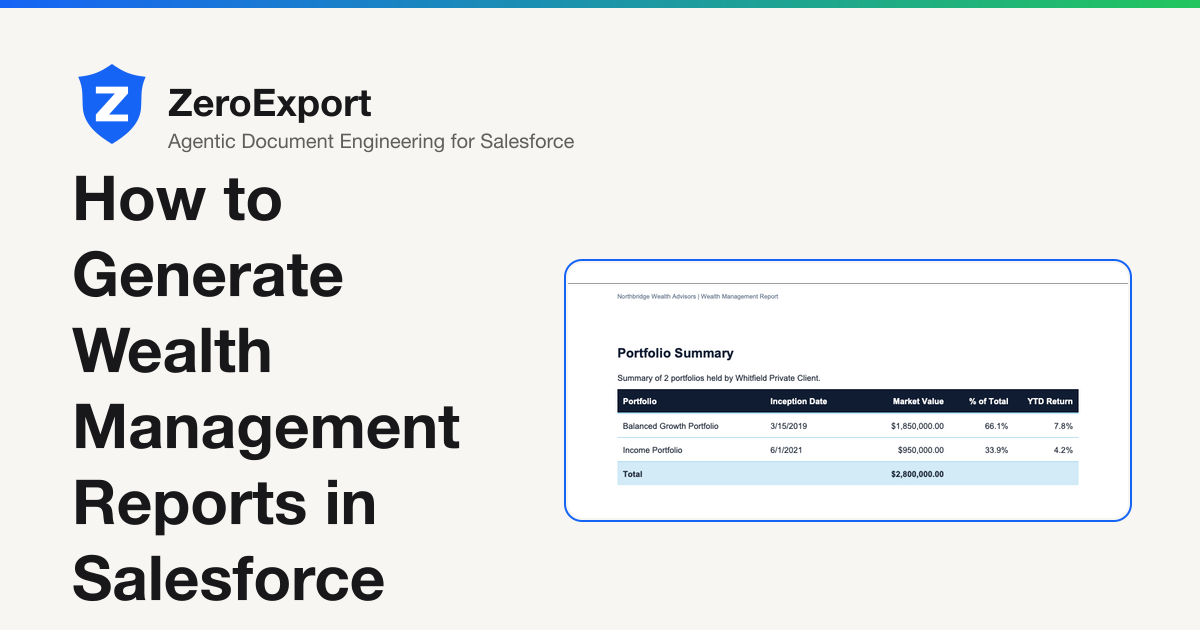
Build a complete client portfolio report in Salesforce using ZeroExport, covering nested holdings, asset class grouping, subtotals, and branded PDF output.
Wealth management client reports sit at the intersection of everything that is hard about document generation: deeply nested data, multi-level grouping, variable section length, conditional disclosures, and strict brand standards.
A typical quarterly client portfolio review includes:
- Client profile and relationship manager details
- Portfolio overview with asset allocation summary
- Holdings breakdown by asset class with subtotals
- Performance section with period comparisons
- Fee disclosure and regulatory notices
Each section draws from different levels of your Salesforce data model. Holdings are related to Portfolios, which are related to Accounts. Performance data may live on a custom object. Disclosures vary by state and account type.
This tutorial walks through building a complete wealth management report in Salesforce using ZeroExport.
What You Will Build
By the end, your report template will:
- Pull client and portfolio data from nested Salesforce objects
- Group holdings by asset class with per-group subtotals
- Conditionally include or exclude disclosure sections based on account type and state
- Render a professional branded PDF directly from a Salesforce record
- Support automation via Salesforce Flow for scheduled delivery
Salesforce Data Structure for This Report
For this walkthrough, the data model is:
Account (Client)
  ├── Portfolio__c (related to Account)
  │     └── Holding__c (related to Portfolio)
  │           └── Asset_Category__c (lookup on Holding)
  ├── State__c (field on Account)
  └── Account_Type__c (picklist: Retail / Institutional / HNI)
Key fields used:
Account.Name,Account.State__c,Account.Account_Type__cPortfolio__c.Name,Portfolio__c.Total_Market_Value__c,Portfolio__c.Inception_Date__cHolding__c.Holding_Name__c,Holding__c.Asset_Class__c,Holding__c.Units__c,Holding__c.Current_Value__c,Holding__c.Weight_Pct__c
Step-by-Step: Build the Wealth Management Report
1. Configure Data Sources
Open the Data source editor from the left rail in the ZeroExport builder. Add:
- Account as the primary object; select: Name, State, Account Type, Relationship Manager, and address fields
- Portfolio as a child of Account; select: Portfolio Name, Total Market Value, Currency, Inception Date
- Holding as a child of Portfolio; select: Holding Name, Asset Class, Units, Current Value, Weight Percentage
Sort Holdings by Asset_Class__c ascending so the grouping logic works correctly.
2. Build the Cover Page Section
Add a full-width section for the report cover. Include:
- Client name and account number (bound to
Account.Name) - Report period (start date and end date; can be passed as template parameters)
- Relationship manager name
- Firm logo and contact details
- Date of report
Use a two-column layout for the client details and firm branding.
3. Build the Portfolio Summary Section
Add a section bound to the Portfolio data source. Include:
- Portfolio name
- Total market value
- Currency
- Inception date
- A summary allocation table by asset class (grouped totals; covered in step 5)
If a client has multiple portfolios, this section repeats for each portfolio record.
4. Add Asset Allocation Summary Table
Inside the portfolio section, add a summary table that groups holdings by asset class and shows the total value and weight for each class:
| Asset Class | Total Value | Allocation % |
|---|---|---|
| Equity | {sum by Asset_Class = Equity} | {pct} |
| Fixed Income | {sum by Asset_Class = Fixed Income} | {pct} |
| Alternatives | {sum by Asset_Class = Alternatives} | {pct} |
| Total | {portfolio.Total_Market_Value__c} | 100% |
This gives the client a quick overview before the detailed holdings section.
5. Build the Holdings Detail Section With Grouping
Add a repeating section grouped by Asset_Class__c. Configure the group-by field in the section settings.
Inside the group section:
- Group header row: Asset class name, formatted as a section heading
- Holdings table: Holding Name, Units, Current Value, Weight %
- Group subtotal row: Asset Class Total Value, Asset Class Weight %
Apply Page Break Before to the group section so each asset class starts on a fresh page.
6. Add Conditional Disclosure Sections
Below the holdings detail, add conditional sections for regulatory disclosures.
Condition 1: State-specific disclosure
- Section: California Disclosure
- Condition:
Account.State__cequalsCA
Condition 2: Institutional client notice
- Section: Institutional Risk Notice
- Condition:
Account.Account_Type__cequalsInstitutional
Condition 3: HNI advisory disclosure
- Section: High Net Worth Advisory Notice
- Condition:
Account.Account_Type__cequalsHNI
Each section renders only when its condition is true. No blank spaces for non-matching conditions.
7. Add the Fee Disclosure Section
Add a fixed section at the end of the document for fee disclosures. This section is always present. Include:
- Advisory fee schedule
- Performance fee terms (if applicable)
- Expense ratio disclosure
- Static legal text for regulatory compliance
8. Configure Page Breaks and Headers
Apply page break configuration across the template:
- Portfolio section: Page Break Before (each portfolio starts on a new page)
- Holdings group section: Page Break Before (each asset class starts on a new page)
- Holdings table rows: Prevent Row Split
- Holdings table header: Repeat Header enabled
- Disclosure sections: Keep Together
Configure a running footer with:
- Client name
- Report date
- Page X of Y
- Confidentiality notice
9. Preview and Validate
Use the Test Bench to run a preview against a real Account record:
- Verify the cover page renders client details correctly
- Verify portfolio summary shows the correct total value
- Verify holdings group by asset class with accurate subtotals
- Verify conditional disclosures appear only for matching account types
- Verify page breaks produce clean section starts
Test with accounts that have different portfolio counts (1 vs 3) and different account types to confirm conditional logic works across variants.
10. Activate and Automate
Once the template is validated, activate it and connect to your delivery workflow:
- Manual generation: Generate directly from the Account record for on-demand reviews
- Scheduled Flow automation: Use Salesforce Flow to trigger report generation on a quarterly schedule
- Email delivery: Attach the generated PDF to an email sent to the client
FAQ
Can this template handle clients with multiple portfolios?
Yes. The Portfolio section is a repeating section; it renders once per portfolio record related to the Account. A client with three portfolios produces three portfolio sections, each with its own holdings and subtotals.
Can I include a performance chart in the report?
Charts based on Salesforce data can be included as image placeholders in the current workflow. Dynamically generated chart images require a pre-generated image URL or a Salesforce chart component screenshot.
How does grouping work if a holding has no asset class assigned?
Holdings with a null Asset_Class__c field are collected into an uncategorized group. You can configure this group to render with a custom label or to be suppressed.
Can the report run automatically at quarter-end?
Yes. Use Salesforce Flow scheduled automation to trigger report generation for all active accounts at quarter-end. The generated PDF can be stored in the Account's Files section and emailed automatically.
Related Reading
Ready to try ZeroExport?
Start generating documents directly in your Salesforce org. No integrations, no setup overhead, no complexity.