Salesforce PDF Table Themes: Brand-Aware Document Styling
Style tables in Salesforce-generated PDFs with brand colors, seven table themes, subtotal and total row roles, empty-row hiding, and custom row colors.
Salesforce PDF table themes style generated document tables using your template or organization brand colors. Choose from Brand default and six preset themes, assign normal, subtotal, or total row roles, hide summary rows when there is no data above, and set custom text or background colors for special rows.
A table is often the most information-dense part of a quote, invoice, or report. It needs to be easy to scan, distinguish headings and totals, and still look like it belongs with the rest of your company’s documents.
Instead of styling every table cell from scratch, ZeroExport provides table color themes that use the template’s brand colors. Choose a theme, give rows semantic roles, and add specific color overrides only where a table needs them.
Which table themes are available for Salesforce-generated PDFs?
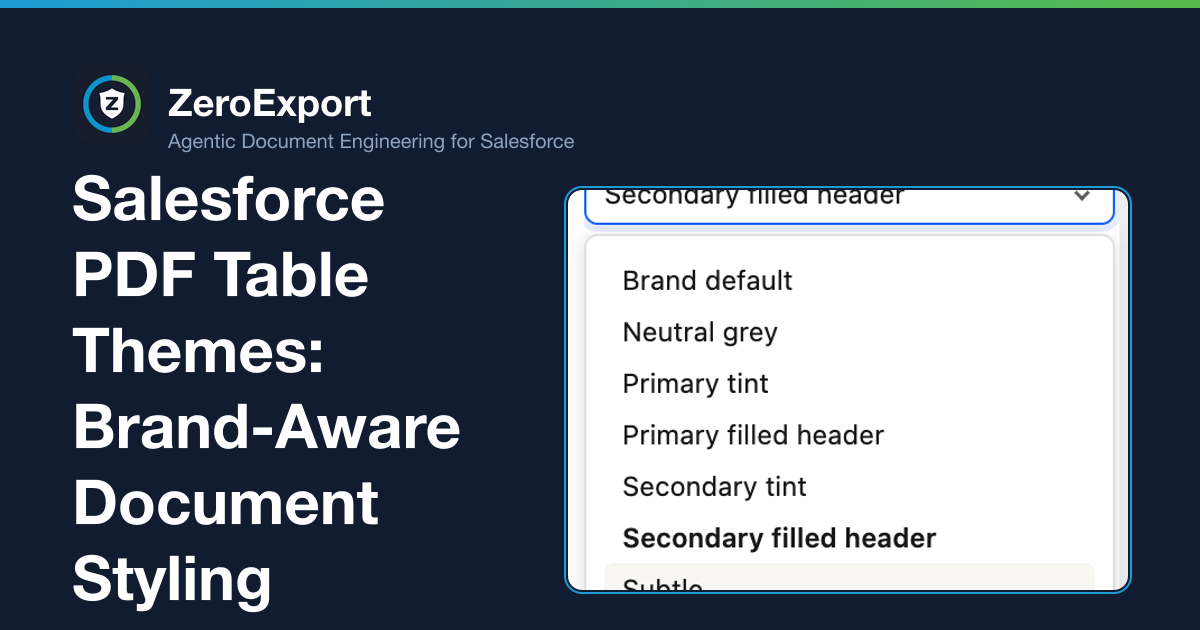
The table Color theme picker offers Brand default, Neutral grey, Primary tint, Primary filled header, Secondary tint, Secondary filled header, and Subtle.
Brand default uses branding configured on the template, or inherits the organization’s global branding when the template follows the organization brand. The other options provide ready-to-use variations. The primary and secondary themes derive their colors and tints from the corresponding brand colors, so they adapt when your brand palette changes.
Here are examples of the neutral, tinted, and filled-header styles:
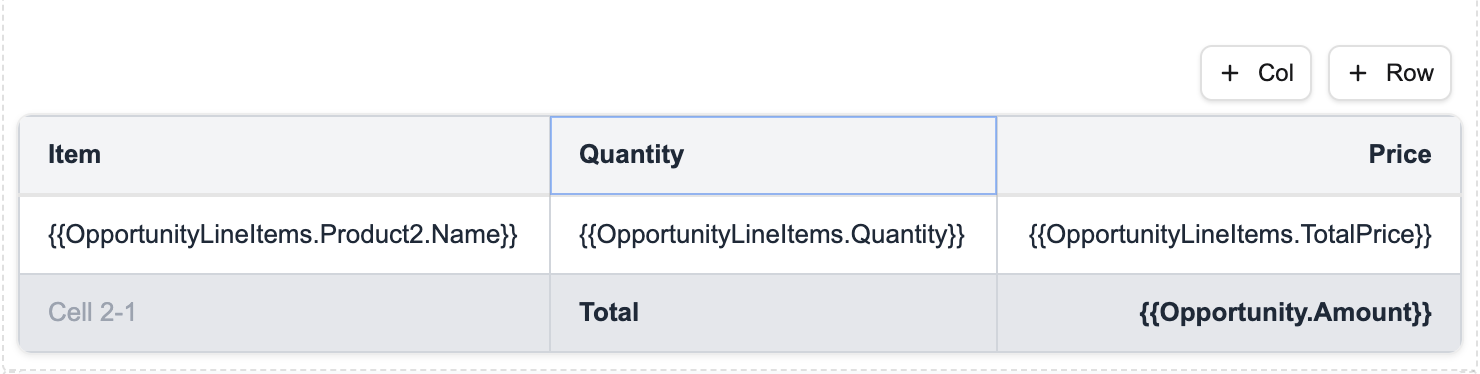
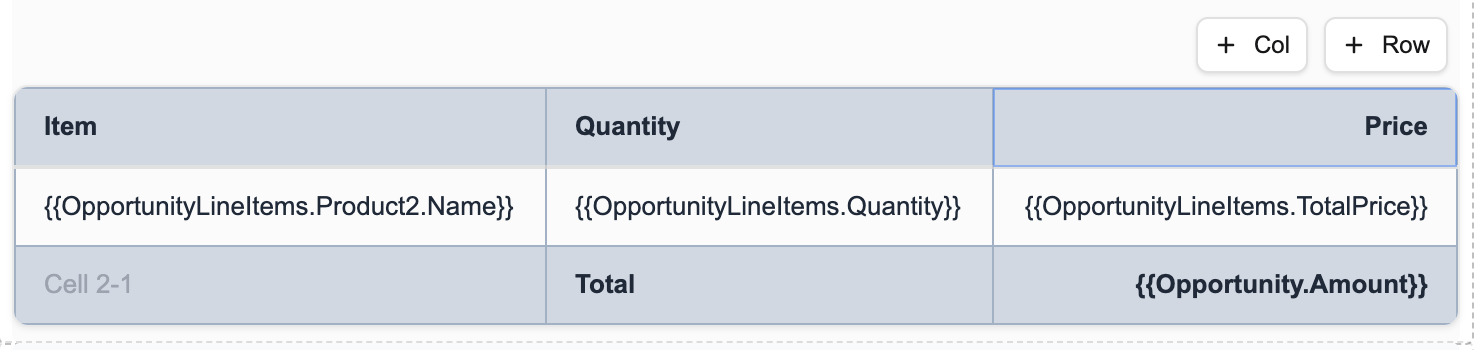
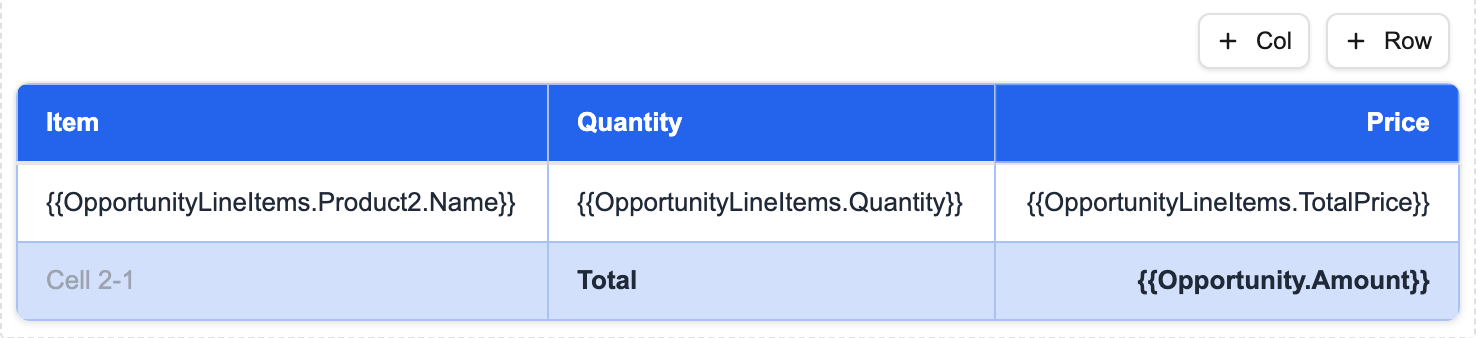
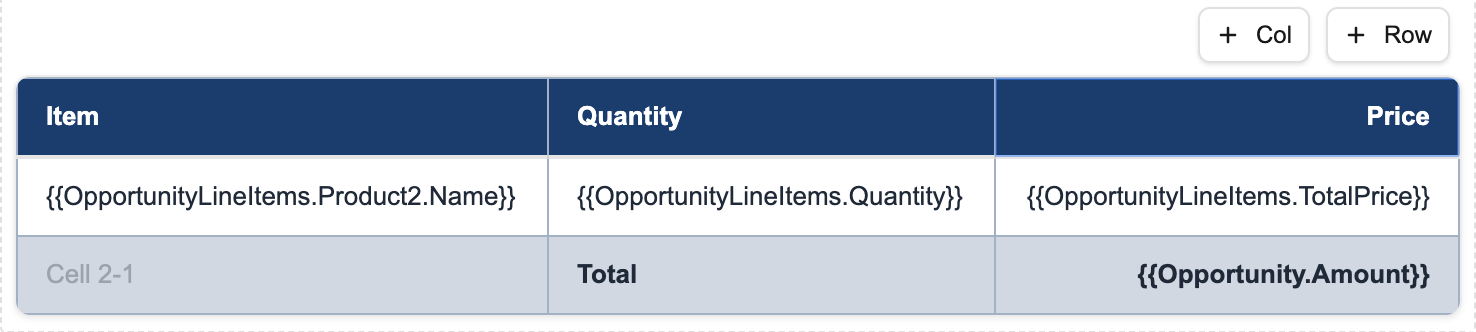
Use a tint when you want brand color without a high-contrast header. A filled header creates a stronger visual hierarchy, while the neutral grey theme keeps attention on the data. The picker also includes Secondary tint and Subtle for other common treatments.
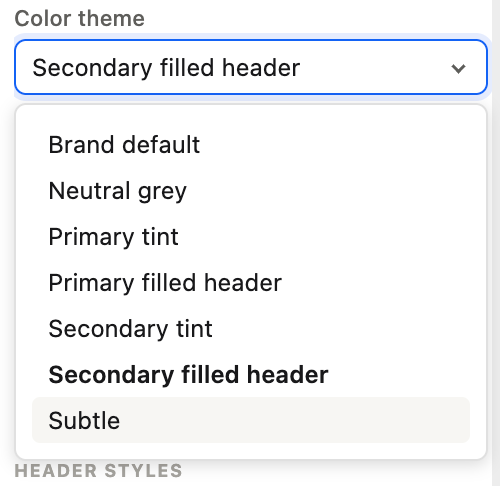
If you update global brand colors, recompile the templates that should receive the new branding. For the precedence rules between global, template-level, and inline styling, see managing Salesforce document branding across templates.
Repeat table headers and stripe rows with one click
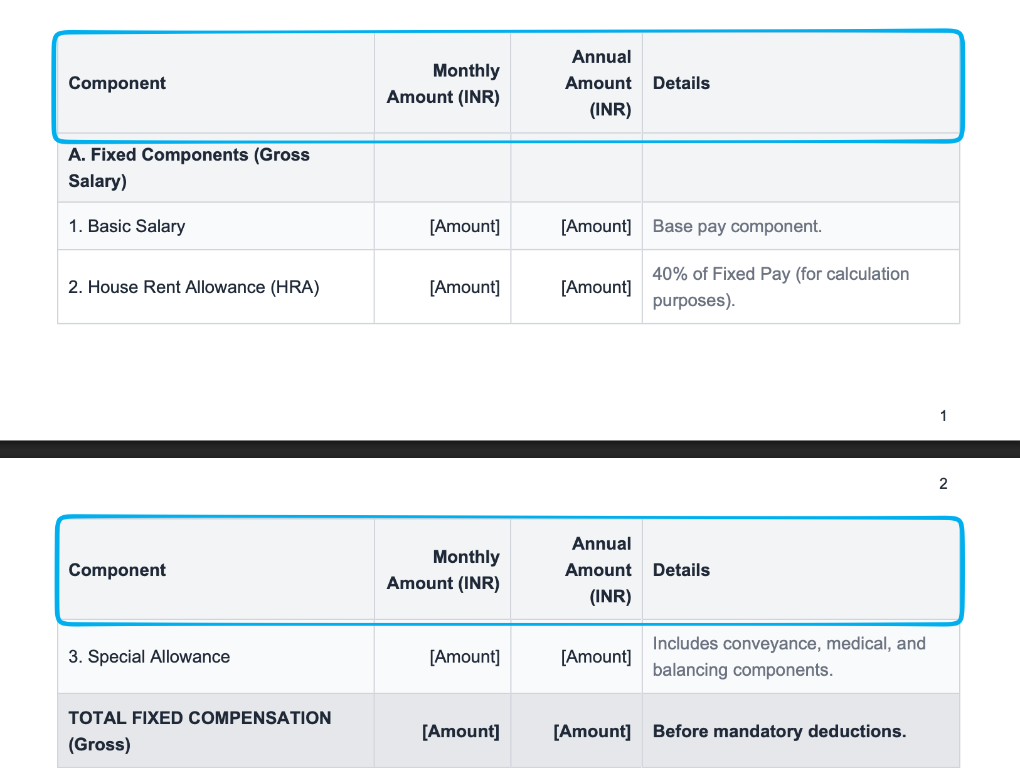
Long tables in generated PDFs need context on every page. Turn on Repeat header on each page in the table properties to repeat the column headings when a table continues onto another page. To make adjacent rows easier to scan, enable Stripe alternate rows. Both are simple table-level options; you do not need to format each row or recreate a header manually.
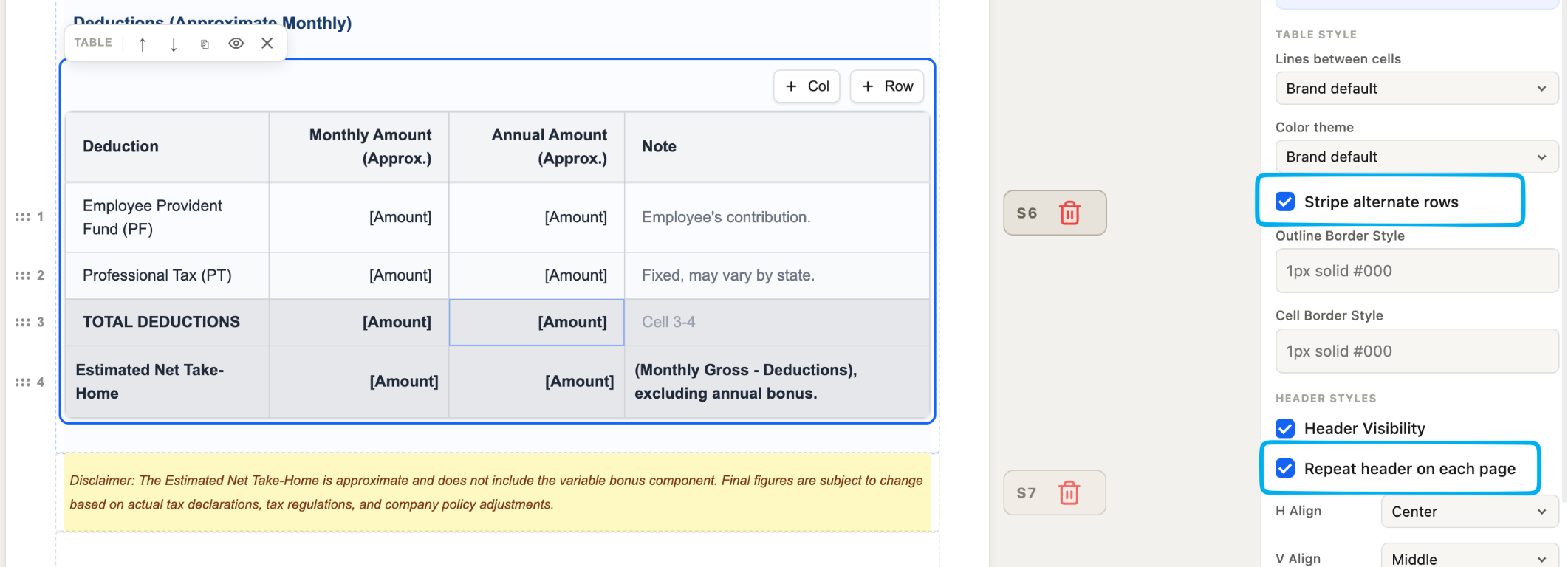
The repeated heading keeps column labels visible after a page break. Alternating row backgrounds make it easier to follow values across wide tables, and the selected theme provides the table colors.
Give rows a role
Tables often include more than a header and repeating data rows. A quote may need a subtotal after each group and a final total at the end. Row roles make that intent explicit:
- Normal row for regular or repeating data.
- Subtotal row to close a group of rows.
- Total row to close the table.
You can also select Hide when there are no rows above it. This prevents a subtotal or total row from appearing when its preceding repeating rows produced no records.
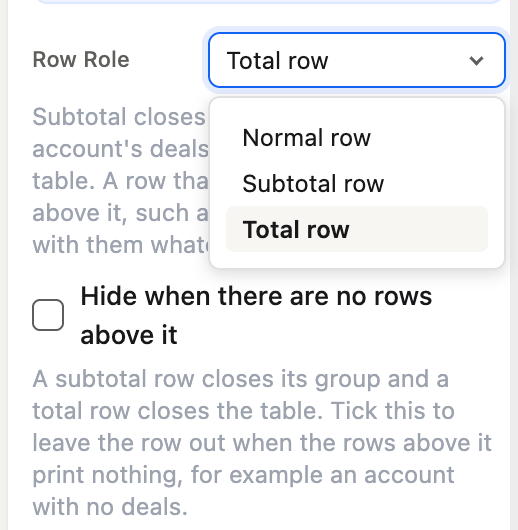
This is useful for data-driven tables: the document can omit a summary row when there is nothing to summarize, rather than displaying a stranded label or empty total.
Add custom colors to a special row
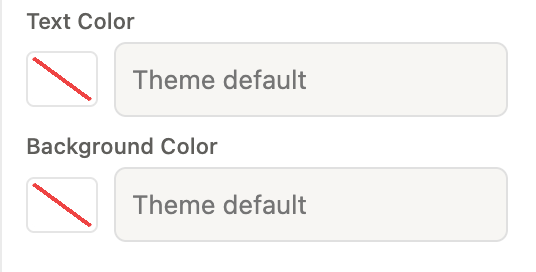
Themes establish the table’s common appearance, but some rows deserve distinct emphasis. Select the row and use the Properties panel to set its Text Color and Background Color. Leaving either at Theme default keeps the selected theme’s styling for that property.
For example, you can give a grand-total row a distinct background while preserving the theme for the header and repeating data rows.
A practical styling workflow
- Choose a table theme that fits the document and brand.
- Set repeating data rows to Normal row.
- Mark group summaries as Subtotal row and the final summary as Total row.
- Enable Hide when there are no rows above it for summary rows that should only appear when there is data.
- Add custom row text or background colors only when a specific row needs emphasis.
- Preview the table with records that have both populated and empty repeating data.
This keeps common table styling consistent while leaving room for meaningful exceptions. For more on rendering grouped records, merged cells, and subtotals, see complex table rendering in Salesforce documents.
FAQ
Do Salesforce PDF table themes use fixed primary and secondary colors?
No. Their colors and tints follow the primary and secondary colors configured in branding, so the theme adapts to your brand palette.
What does Brand default mean for a Salesforce document table?
It uses the template’s branding settings. If the template follows organization branding, it inherits the global brand settings instead.
Can I style only the total row in a generated PDF?
Yes. Select the row and set its text and background colors in the Properties panel. Other rows can continue to use the table theme.
Can an empty subtotal or total row be hidden?
Yes. Select Hide when there are no rows above it for the row. It will be omitted when the rows before it produce no records.
How do I repeat table headings and add striped rows in a Salesforce PDF?
Select the table and enable Repeat header on each page and Stripe alternate rows in its properties. The first repeats the table's column headings across page breaks; the second alternates row backgrounds for readability.
Related reading
Ready to try ZeroExport?
Start generating documents directly in your Salesforce org. No integrations, no setup overhead, no complexity.